Requests arrive by email: in copy, in forwards, in replies to old threads. The Pigeon reads the mailbox for you: it finds the right emails, creates tasks in the right projects for the right people or groups, links the correspondence to clients and continues it in the same task. Employees only need to add the Pigeon's address in copy.
Agents automate routine work, and the Pigeon is the first of them.
Where to find it
Sidebar → Agents (above "Tools"). The section is enabled by the system administrator (the "Agents" module). It is available to organization administrators and to the administrators of a particular Pigeon.

Create a Pigeon
- Click Create agent, choose the type Pigeon — mail dispatcher and enter a Name.
- Fill in the mailbox (IMAP): Mailbox address, IMAP server, Port, Encryption, Password. The server is filled in from the address. The Login is needed only if it differs from the address.
- Optionally choose Pigeon administrators: pick an employee in the list and click Add.
- Click Check: HubNext signs in to the mailbox and shows how many emails it has. You cannot save until the check passes.
- Click Save.
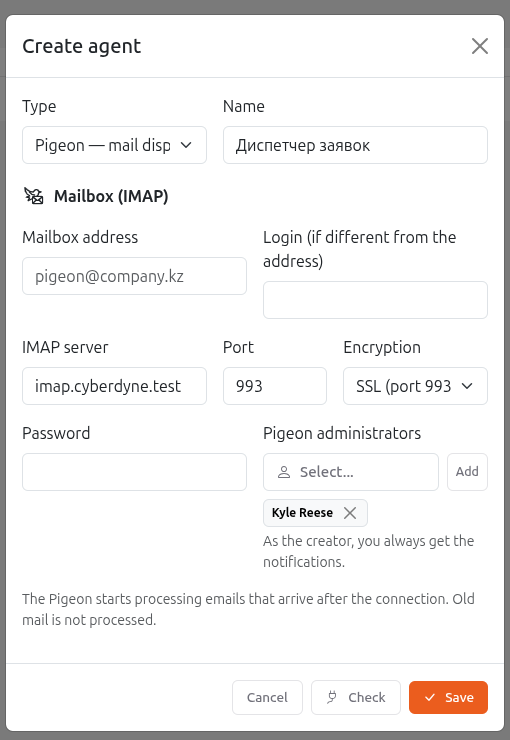
The Pigeon processes only emails that arrive after the connection. Old mail in the mailbox is not processed.
With mail hosting providers, the server name that matches the certificate may differ from the mail domain (for example pkz7.hoster.kz instead of mail.yourdomain). If Check reports a certificate problem, take the server name from your provider.
A new Pigeon is created disabled: add rules and click Enable. The mailbox is checked every 5 minutes.
Rules
Rules are checked from top to bottom; the first matching rule fires (unless "After this rule, check the following rules" is checked). Click Add rule.
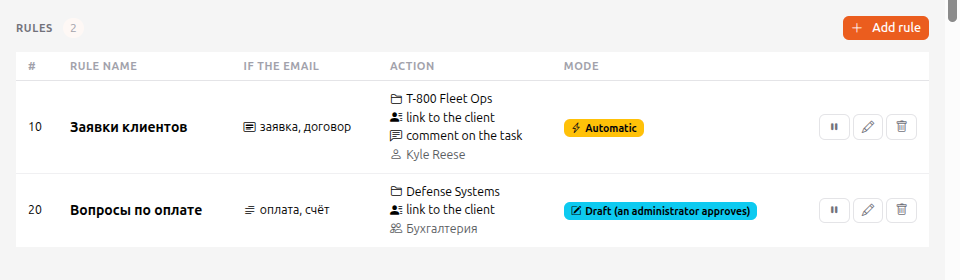
If the email:
- From — an address, a domain (
client.kz) or a name; several values separated by commas. Names are matched in both Cyrillic and Latin. - Words in the subject and Words in the email — separated by commas. Words are found in any form and with typos ("invoice" finds "invoices"). All words of one phrase ("ticket refund") must be present. Match: any of the words or all the words.
- Language of the words — Русский, English or Қазақша.
- Fill in at least one condition, otherwise the rule is not saved.
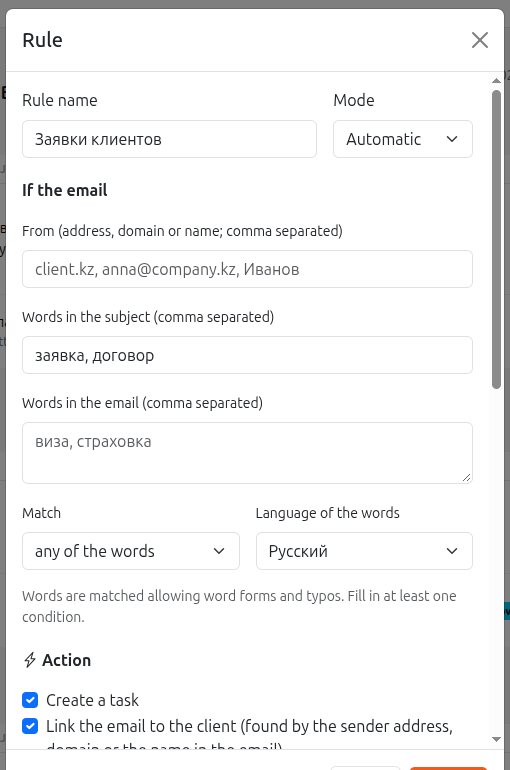
Action (you can check several):
- Create a task — Project, Subproject, Assignee or Group, Tags, Priority, Task type. The task title is the email subject; the description is the email text with the sender's address; attachments are added to the task.
- Link the email to the client — the client is found by the sender address, then by the domain (if it belongs to one client) and by the client's name in the email. If several clients match, or none, the email stays without a client.
- Add as a comment to an existing task — if the subject or the beginning of the email has a task number (for example
abc-123). The Pigeon comments only when sure: the email is a reply in a thread, there was earlier correspondence on the task with this sender or client, or the sender is the author, assignee or a watcher of the task. If it is not sure or there are several numbers, the email goes to drafts.
Tags are chosen from a list; if the tag you need is missing, type its name and click Create.
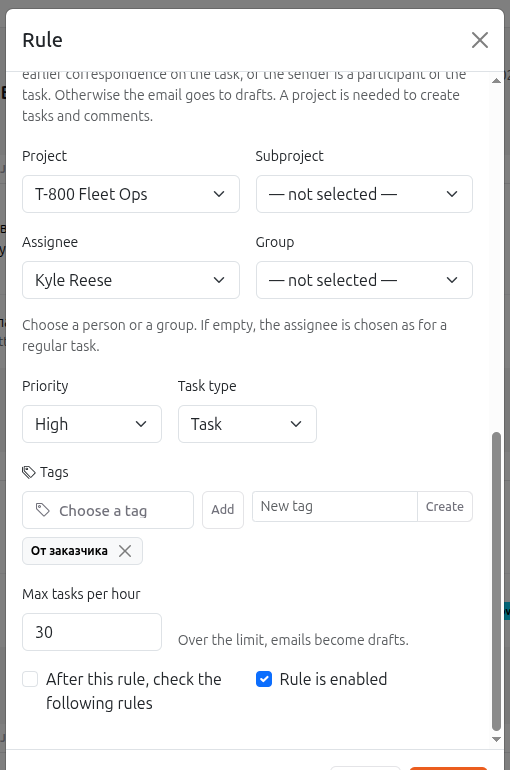
Mode:
- Draft (an administrator approves) — nothing is created at once; the email goes to the approval queue.
- Automatic — the action is performed at once.
Max tasks per hour protects against a flood of emails: over the limit, emails become drafts.
Start with the Draft mode. When you are sure the rule picks exactly the right emails, switch it to Automatic.
Approval queue
Emails matched by "Draft" rules wait in the Approval queue. For each one you see the sender, the subject and what will be done: the project of the task, the assignee, the client found. Approve performs the action, Reject leaves the email without consequences (its attachments are deleted).
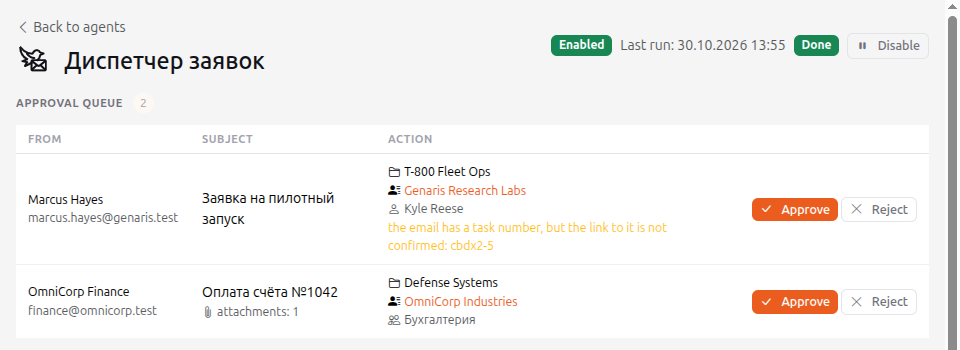
When new drafts appear, the Pigeon's administrators get an email, and the "Agents" menu item shows the number of pending drafts.
Recent emails
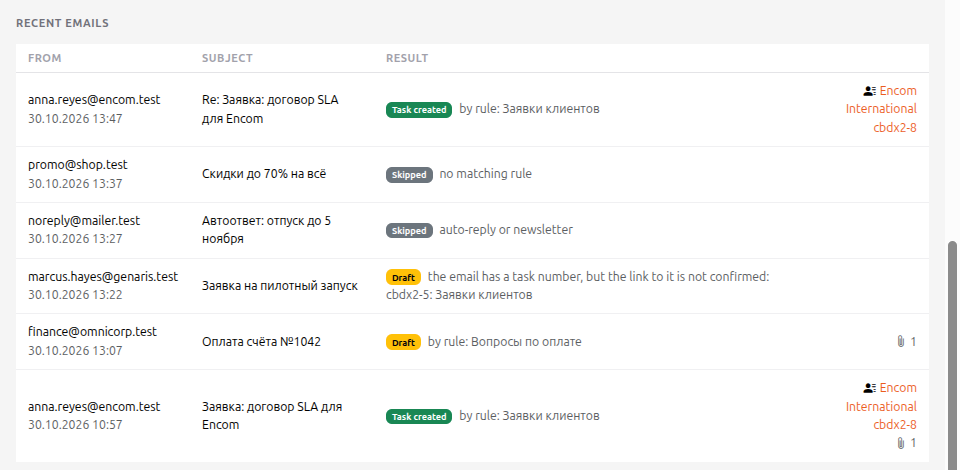
The Recent emails block shows the result for each email: task created, draft or skipped, and why. If a client was found, there is a link to it next to the email, and a link to the task if one was created.
Clients and "Communications"
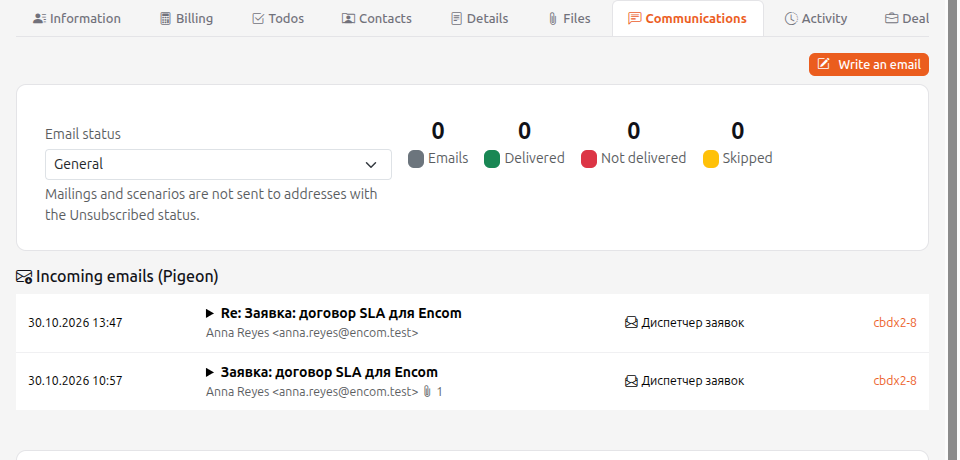
Emails that the Pigeon linked to a client or lead appear in the card on the Communications tab, in the Incoming emails (Pigeon) block: date, subject (click to read the text), sender, attachments and a link to the task. The whole correspondence with the client is in one place.
Replies in a thread
If a client replies to an email that already produced a task or a client link, the Pigeon does not process it again: the reply is added as a comment to the same task and linked to the same client. The mode is taken from the rule that handled the first email.
What the Pigeon skips
Auto-replies, newsletters, emails from the mailbox's own address and repeated emails (with the same ID). Attachments are saved only for allowed file types (documents, spreadsheets, images, archives and so on): executables and other forbidden files are skipped.
Pigeon administrators
In Settings → Pigeon administrators you can add organization employees. They approve drafts and manage the rules and mailbox of this Pigeon; only organization administrators can create and delete agents.
Not supported yet
Forwarded emails (Fwd:) take the sender from the "From" header, which is the employee, not the client. Quotes in replies are not cut: the whole email body goes into the comment.