Notes are personal records: a server address, a phone number, a thought for later. Plain text, no deadlines or statuses. They are visible to you and only you — they are yours alone: neither colleagues nor administrators can see them.
Where to find it
Sidebar → Todos → Notes. The section expands with the arrow to the right of Todos.
How to add a note
- Open Notes.
- Type the text in the field at the top.
- Click Save (or press Ctrl+Enter).
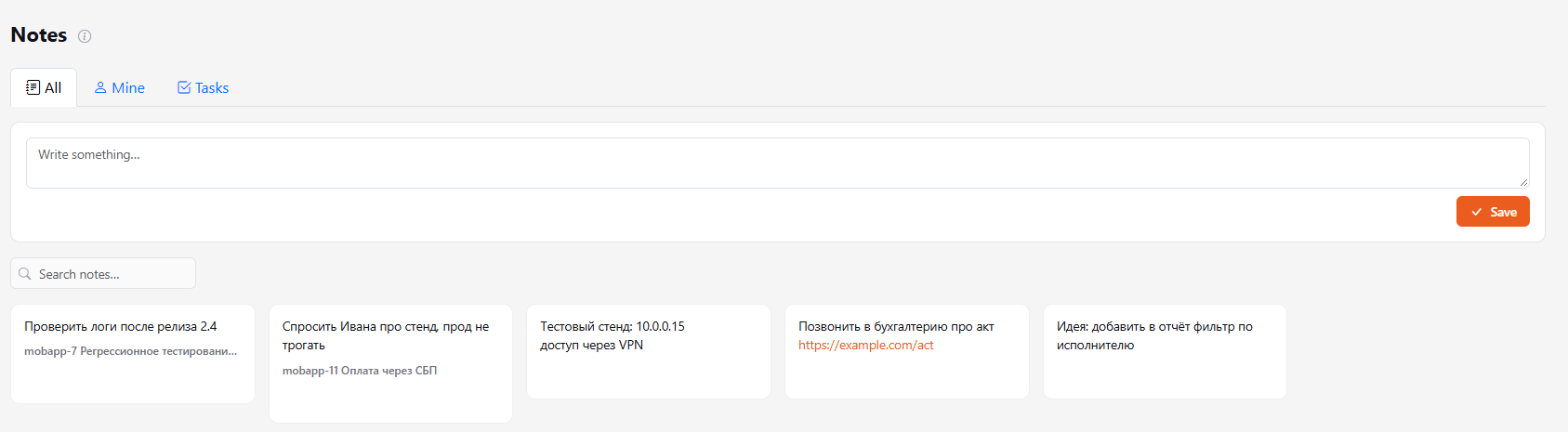
Notes are shown as cards, the newest and edited ones first. Links in the text are clickable.
What you can do with a note
Hover over a card to see the buttons:
- Copy — puts the text on the clipboard.
- Edit — edit right in the card.
- Delete.
There is a text search at the top.
Tabs
- All — all your notes.
- Mine — free notes not attached to anything.
- Tasks — notes you left in task cards. The task number is shown under the text — click it to open the task.
Task notes

In the top bar of the task card, to the left of Copy, there is a Notes button (with the number of notes). It opens the My notes window: the notes in it are visible only to you — neither the assignee nor colleagues can see them, and they are not included in the task Copy and Export. All such notes are collected on the Tasks tab in Notes.
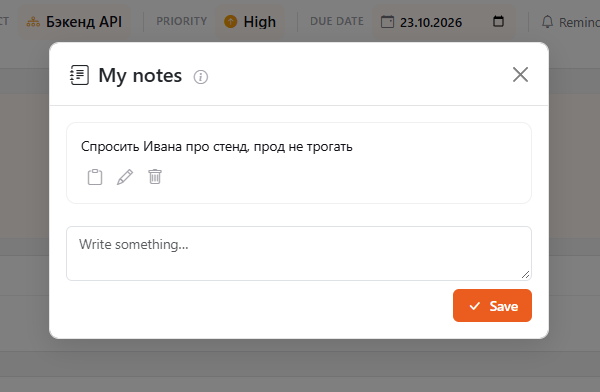
Do not store passwords or other secrets in notes — they are kept as plain text. The "i" icon next to the heading shows this reminder.