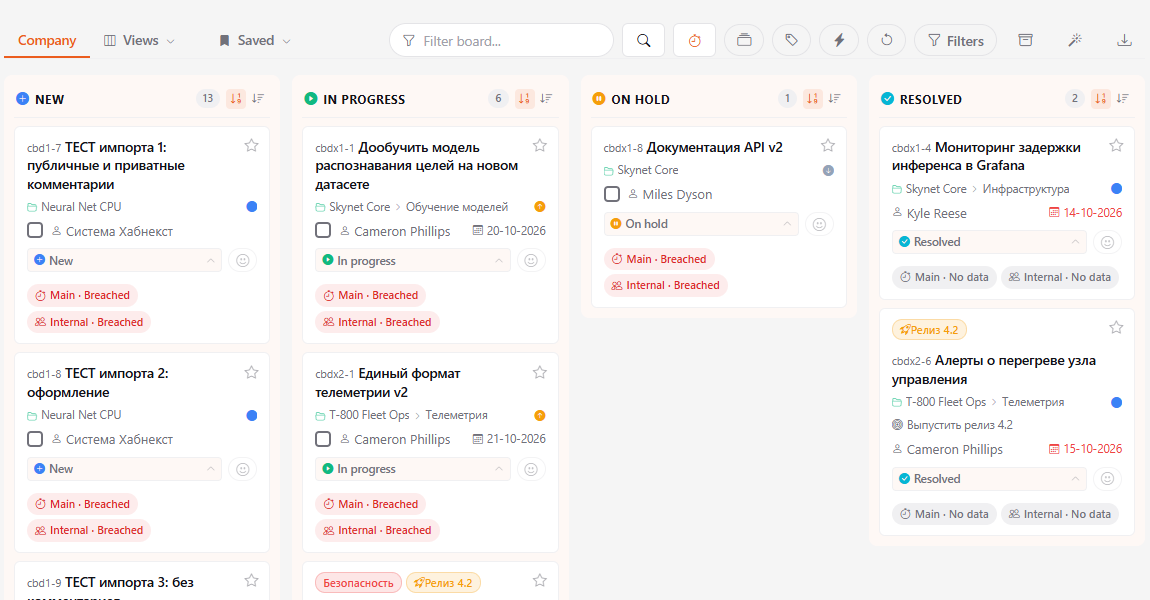
The Tasks section opens in one of two views: Dashboard — your tasks as lists, and Kanban — all company tasks in columns by status. The switch is in the top bar on the right.
Where to find it
Sidebar → Tasks, then the Dashboard / Kanban switch in the top bar. The last view you chose is remembered.
Dashboard
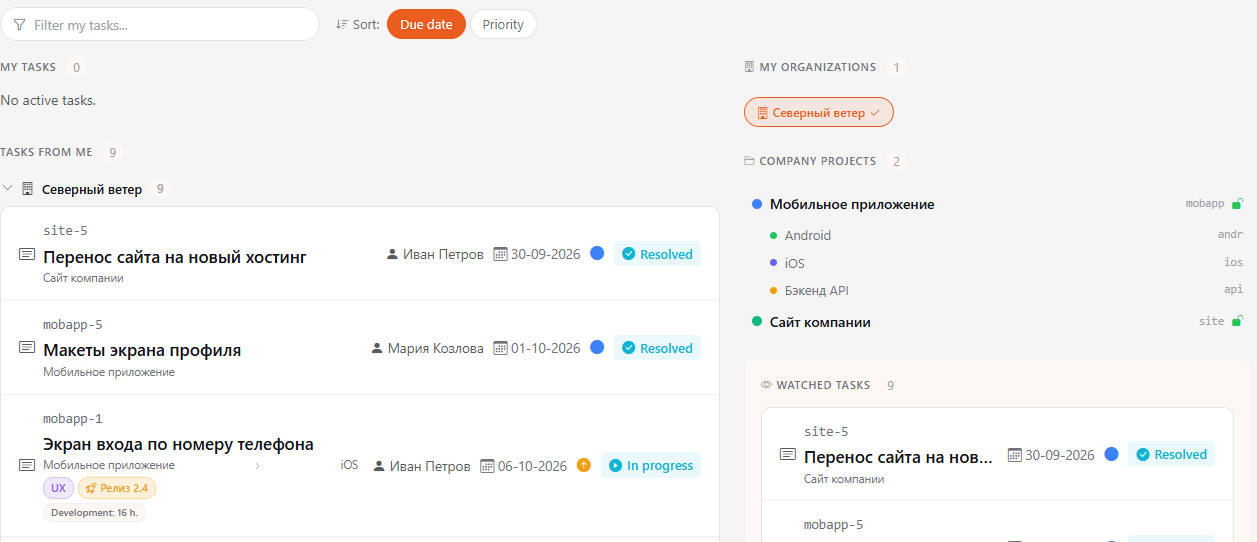
The dashboard answers the question "what am I working on":
- My tasks — tasks where you are the assignee. Resolved and closed tasks are not shown here.
- Tasks from me (right) — tasks you've given to others, grouped by organization.
- Watched tasks (right, below it) — tasks you follow.
The My organizations (switch between organizations) and Company projects (the projects and subprojects you have access to) dropdowns are above the lists, next to the sort control.
Groups and task blocks collapse when you click their heading (next to the arrow). Your choice is remembered for your next visit.
Filter my tasks quickly finds a task by title. The Due date and Priority buttons change the sorting.
Kanban
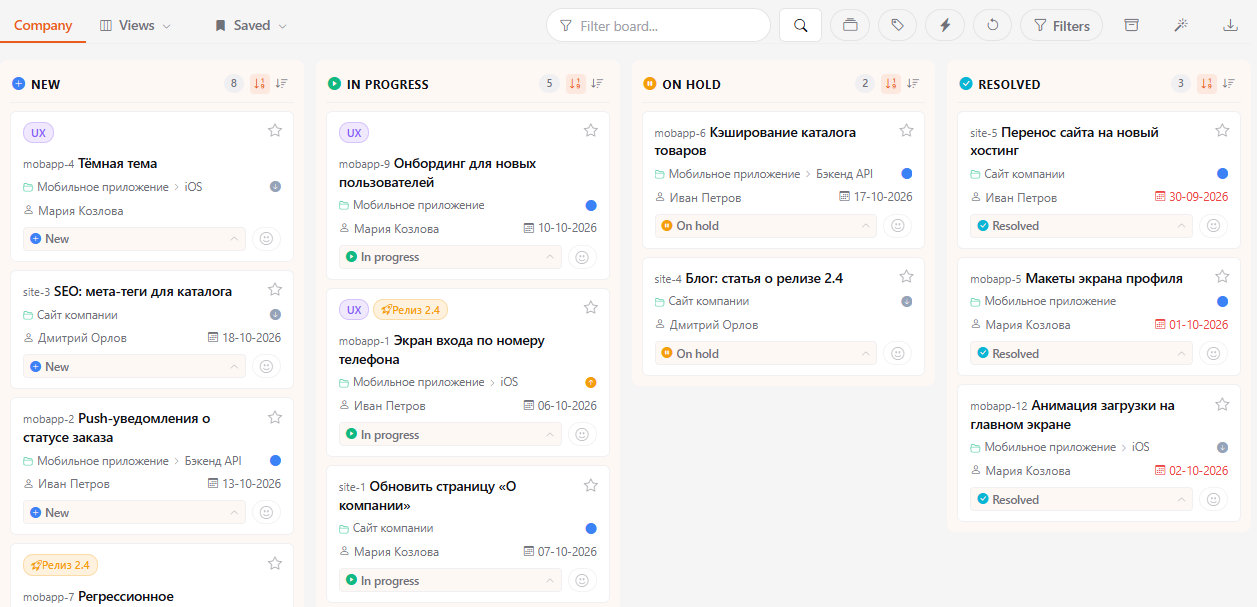
The columns are statuses: New, In progress, On hold, Resolved. The number in the header is the number of tasks in the column. A card shows tags, number and title, project and subproject, assignee, due date and priority (a colored dot). Overdue dates are highlighted in red.
Working with cards
- Click a card to open the task.
- The status button at the bottom of the card changes the status without opening the task.
- The star adds the task to favorites.
- The smiley adds a reaction to the task.
What to show
- Company — all company tasks you have access to.
- Views — ready-made selections: My tasks, From me, My group (if you are in a group).
- Saved — your own filter sets. You can make one of them the default filter: it is applied every time you open the board. - Rename (pencil) — give the filter your own name. - Share (the share icon next to the filter name) — pick colleagues and each gets their own copy of the filter. Projects the person has no access to are left out of the copy — you will see who ended up with how many projects. The recipient gets a notification; a shared filter is marked from ..., is not applied automatically and never becomes the default. The copy is independent: your later edits do not affect it. Limit — 20 saved filters per person.
Toolbar
- Filter board — search cards by task title.
- Grouping — split the columns into rows by tags, resolution, project or task type.
- Tags — show only tasks with the selected tags. You can tick several: tasks with any of them are shown. The same choice is available from the tag button in the bar above the board; the list stays open after a click — close it with the cross, the Esc key or by clicking outside.
- Quick filters (lightning) — choose the projects and subprojects to show on the board.
- Filters — by project and subproject, priority, type, author, assignee and group.
- Reset all filters — return the board to its default state.
- Show closed tasks — add the Closed column.
- Quick reports — a due date summary: how many tasks are overdue, due soon, on track or have no deadline, and who has overdue tasks.
- Export — export the board as text (Markdown), for example for an AI assistant.
Each column header has sorting by date and by priority.
Set up the filter you need once — for example, only your projects — and save it as the default filter. The kanban board will then open the way you need right away.
Remind an assignee
If a task is stuck, you can nudge its assignee right from the board or a list:
- Tick the checkbox next to the assignee's name on a card (kanban) or in a task row (lists). You can select several tasks.
- A Selected to remind panel with a Remind button appears at the bottom of the screen. Press it.
- The assignee gets a message: "Your name reminds you about the task "Title". Your reaction may be required" — with a link to the task. It goes to email, to Telegram (if linked) and to the bell — even if the assignee has notifications turned off.
There is no checkbox on your own tasks, tasks without an assignee and closed tasks. The same assignee can be reminded about the same task again no sooner than 30 minutes later. Every reminder is recorded in the task history.
SLA on the Kanban board and dashboard
If SLA is set up in your organization, a stopwatch button appears next to the search on the Kanban board. Click it — badges per SLA kind appear on the cards: On time, Breached and others; hover to see details. Click again to hide the badges. On the dashboard, the same small button is in the My tasks and Tasks from me headers. By default SLA isn't calculated.