SLA is an agreement on how fast the team reacts to a task and how fast it resolves it. Each priority has two norms: reaction and resolution. HubNext calculates whether a task is on time and shows it in the task, on the Kanban board and on the dashboard.
Where to find it
Management → SLA. Head and above can configure it.
How to set it up
- Set the working hours: the start and end of the day and the working days. By default 10:00–17:00, Mon–Fri, in server time. SLA clocks run only during working hours: a task created on Friday evening starts counting on Monday at 10:00.
- In Norms by priority, enter the reaction and resolution for each priority (critical, high, medium, low) in hours and minutes. An empty field means no norm.
- Click Save.
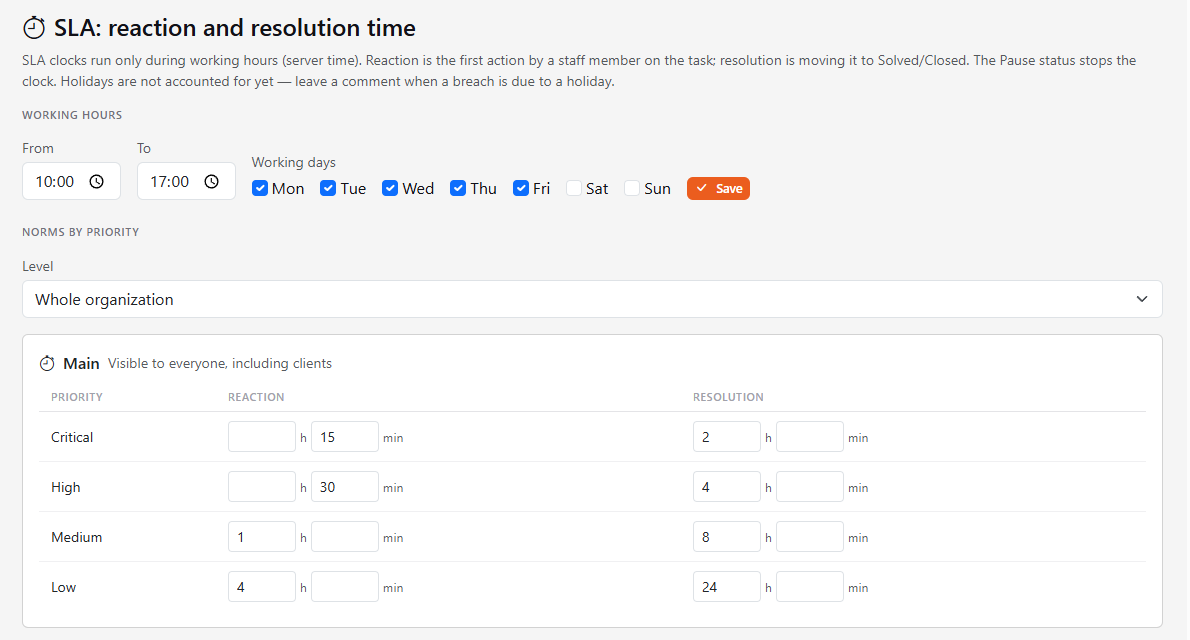
You can set norms for the whole organization, or pick a project in the Level list and override the norms for it only. A project norm overrides the organization norm; an empty field falls back to the organization (its value is shown under the field).
Three kinds of SLA
Norms are set separately for each kind — for the organization or for a project:
- Main — visible to everyone, including clients.
- Internal — visible to staff only, hidden from clients.
- System — visible to administrators only.
What counts as reaction and resolution
- Reaction is the first action by a staff member on the task: a public comment, or a change of status, assignee or priority. A client's replies don't count; any administrator counts as staff. "Client" is an employee type in the user's profile (Administration → Users), and guests of guest projects count too. Private comments don't count.
- Resolution is moving the task to Solved or Closed. Time in the Pause status isn't counted. If the task is reopened, resolution is counted again from that moment.
- Changing a task's priority counts as a reaction, and the resolution time restarts using the norm of the new priority.
Holidays aren't accounted for yet: if a deadline is missed because of a holiday, leave a comment on the task.
Where you see SLA
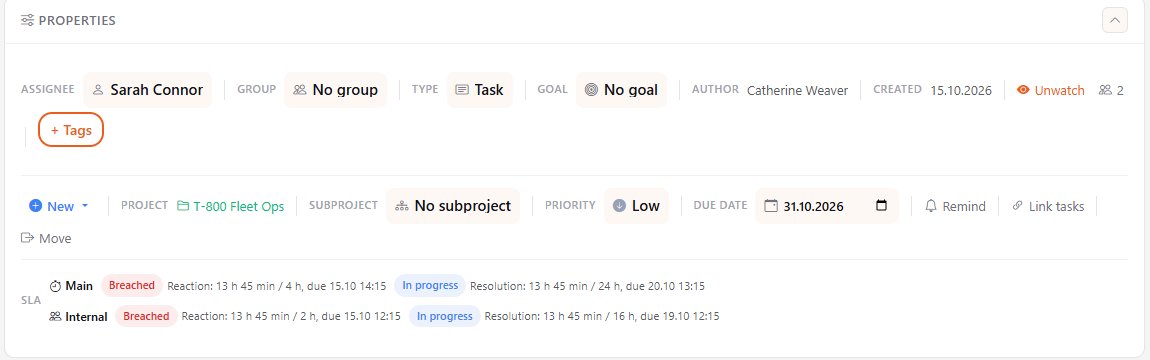
- In the task — in the properties panel, the SLA row: elapsed time, the norm and the due time. States: On time, Late, In progress, Breached, Paused.
- On the Kanban board — a stopwatch button next to the search: it calculates SLA for the cards on the board and shows a badge on each. Click again to hide the badges.
- On the dashboard — the same small button in the My tasks and Tasks from me headers.
The button appears only if your organization has an SLA that you can see; administrators always see it. By default SLA isn't calculated on the Kanban board and dashboard.