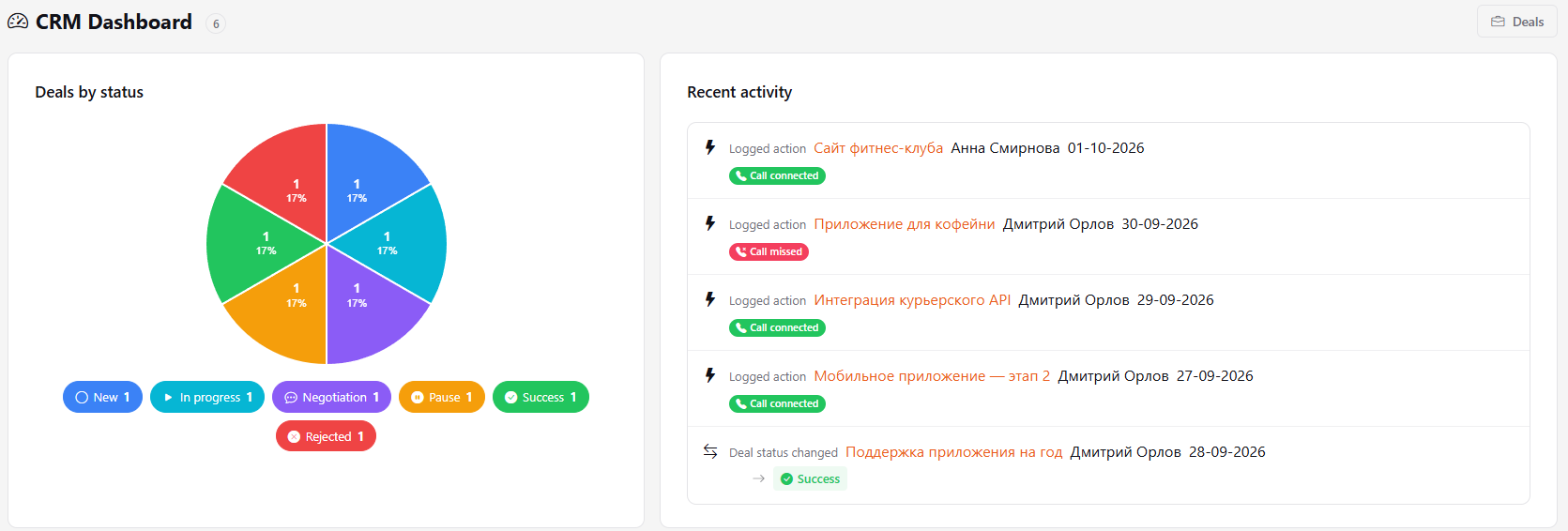
The Marketing dashboard is a one-screen sales summary: how many deals are at each stage of the funnel and what the team has been doing with deals lately.
Where to find
Sidebar → Marketing. The number next to the Marketing Dashboard title is the total number of deals in the organization. The Deals button on the right opens the deal funnel.
Stale deals
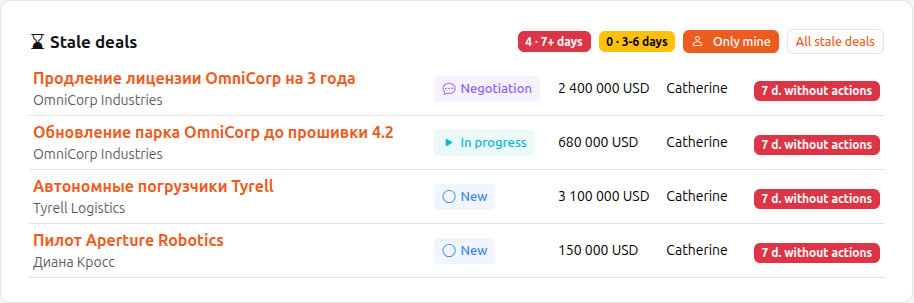
Above the chart is a list of open deals (New, In progress, Negotiation) with no recent activity: no edits, comments or history entries. The oldest are on top, each shows how many days it has been idle. A red badge means 7+ days, a yellow one 3-6 days; the badges show how many deals are in each group. Only mine keeps the deals where you are the manager, All stale deals opens the deals board with this filter. The same deals reach the manager in the Auto Summary as a Stale deals block.
Deals by status
The pie chart shows how deals are spread across stages: New, In progress, Negotiation, Pause, Success, Rejected. Each slice shows the number of deals and its share in percent. Below the chart are the same stages with counts. Stages that currently have no deals aren't shown.
If a big slice is Pause or Negotiation, deals are stuck: open the funnel and see where a next step is needed.
Recent activity
A feed of all deal actions in the organization, newest first:
- quick actions from the Action button on a deal card — Call connected, Call missed and others;
- deal status changes — with the old and new stage;
- other deal changes.
Each entry shows the deal name, who did it and when. The deal name opens its card. At the bottom of the feed there's a Load more button for older entries.
Settings: organization mail
The organization head sees a Settings section at the bottom of the dashboard (the Settings button at the top jumps to it). Shared organization mailboxes are connected there: Connect mailbox → address and password → Check → Save. These addresses can be picked in mailings and scenario steps. More in Mailboxes.