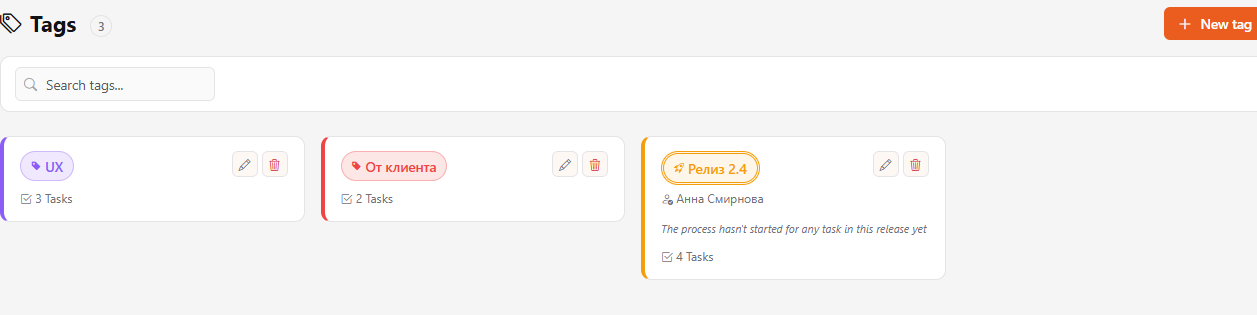
Tags are colored labels that group tasks by topic: "UX", "From client", "Urgent". A special kind of tag is the release: it gathers tasks that ship together and shows whether the team is on track for the date.
Where to find it
- Sidebar → Tasks → Tags — all company tags.
- On the task card — the + Tags button in the Properties block.
How to tag a task
- Open the task and click + Tags.
- Start typing a name. Pick an existing tag or click Create to add a new one.
- To remove a tag, click the cross on it.
Tags are shown on kanban cards and in task lists. On the kanban board you can filter by them (Tags) and group by them (Grouping → By tags).
Who added a tag, and when
Adding and removing a tag is recorded in the task Activity feed: you can see who did it and when. The same applies to the activity of deals, clients and leads.
Tag page
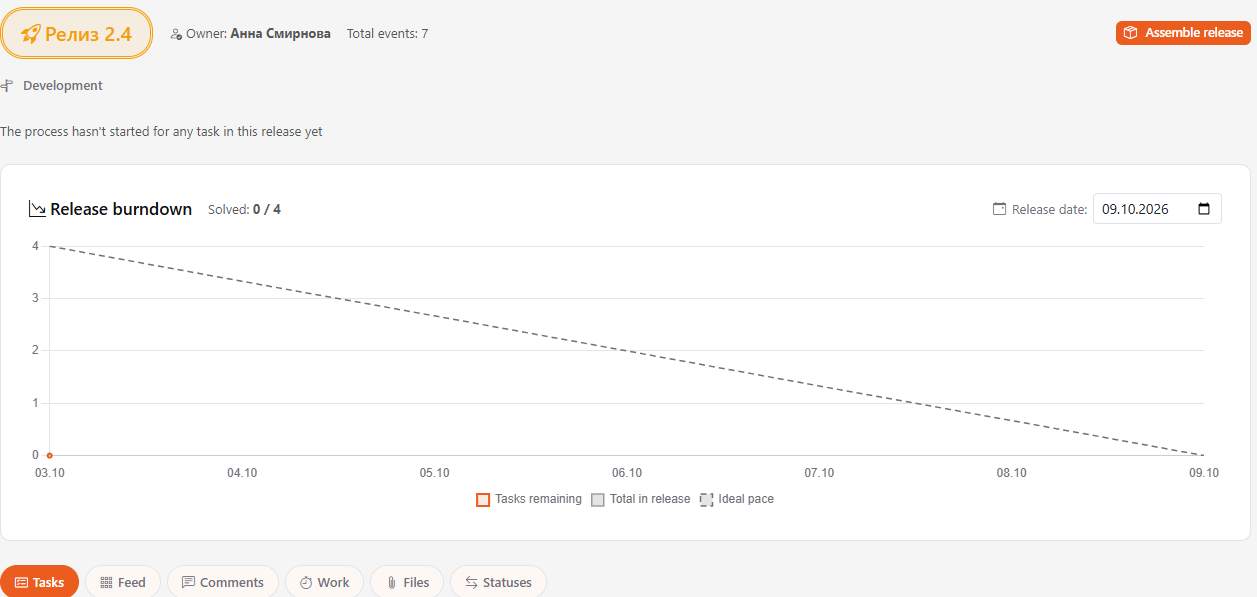
Click a tag in the list to open its page. It has tabs: Tasks with this tag, Feed — all events on these tasks, plus Comments, Work, Files and Statuses. So one tag shows everything happening on a topic.
How to create a tag in advance
- Sidebar → Tasks → Tags, the New tag button.
- Enter a name and choose a color.
- Choose the type: Regular or Release. Optionally set the Owner — regular tags can have one too.
Rename or recolor a tag with the pencil on the tag card. A tag can be deleted by whoever created it or by an administrator.
You can become the owner of a tag in one click: the person icon on the card in the list, or the Become owner button on the tag page. Regular tags can have an owner too.
The Tags page list can be filtered by name, by type (Regular or Release) and by the owner. The Mine button keeps only tags where you are the owner. Your filters are remembered for your next visit; Reset filters clears them all at once.
Releases
A release tag differs from a regular one:
- A task can have only one release. If you add another release tag, the previous one is removed automatically.
- The release page has a Release date and a Release burndown chart: how many tasks are left and the pace needed to make it in time.
Release planning
The Assemble release button on the release page opens planning:
- In Release capacity, set how many hours the team can spend on each work type: backend, frontend, testing and so on. Click Save.
- On the left, in Available tasks, choose a project and add tasks to the release. Tasks with a time estimate are listed separately — their hours count against the capacity right away. To narrow the list, add one or more tags with the + Tags button (it has a search by name): tasks with at least one of the selected tags remain (including those without an estimate). Reset clears the filter.
- On the right, in In release, you see how many hours are planned and what's left. Going over capacity is highlighted in red.
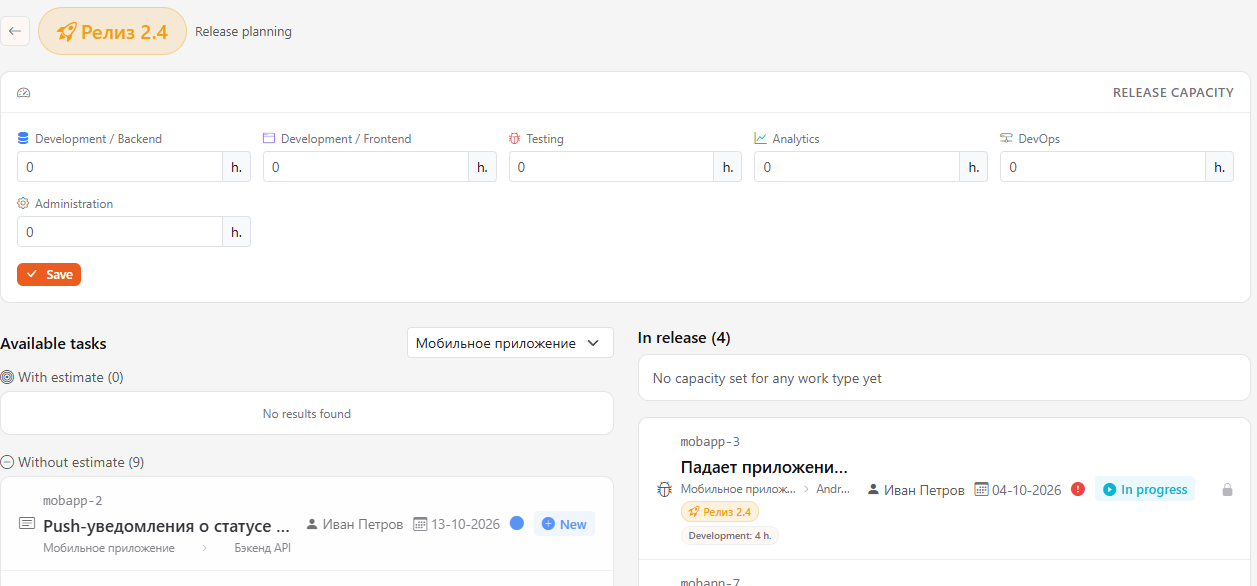
A task can be removed from a release only while it is New. Tasks already in progress are marked with a lock.
Release process
In organizations with the development process, a resolved task gets a Process block with stages: Review → Merged → Testing → Staging → Acceptance → Released. Click a stage to mark where the task is now. The release page shows which stage its tasks are at.
Time estimates on tasks make release planning accurate. Ask assignees to add an estimate on the Works → Estimate tab, see Time tracking.