The Works tab on the task card records how much time was spent on the task and how much was planned. This data feeds the reports by people and projects.
Where to find it
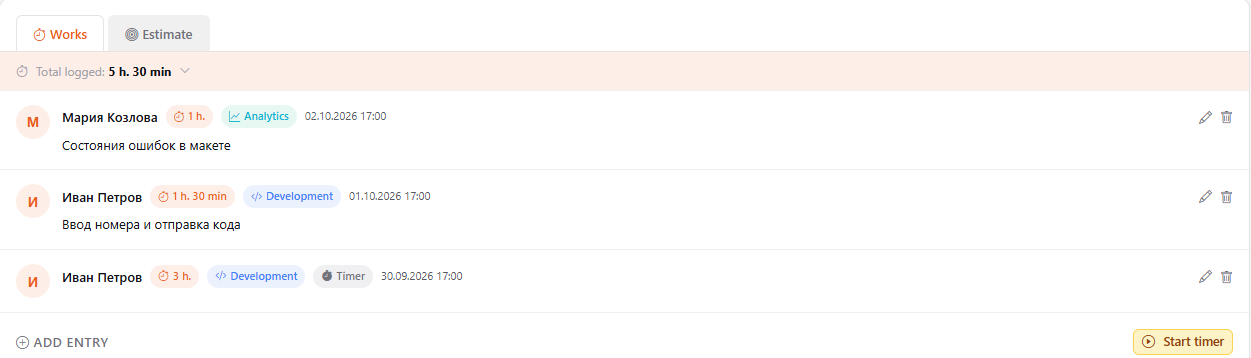
Open a task, the Works tab at the bottom of the card. It has two inner tabs: Works — the time actually spent, and Estimate — the planned time.
How to log time manually
- In the add entry block, enter the Time — hours and minutes.
- Choose the Work type: development, testing, analytics, review and so on. Add a Work subtype if needed.
- If the work took several days, set the Start and End dates.
- Briefly describe what was done — optional, but it helps in reports.
- Click Add entry.
The Total logged for the task is shown at the top of the list.
Timer
If you don't want to count time by hand, click Start timer when you begin and Stop when you finish. The time is logged automatically and marked Timer.
A timer can run on only one task. If you start it on another task, the previous one stops and logs the time for its task.
Estimate
On the Estimate tab you set how long the task should take: hours and minutes, work type and subtype. You can add several estimates — for example, separately for development and testing. The sum is shown as Total estimated, and on the dashboard an estimate label appears under the task title.
Who can edit entries
You can edit or delete your own entries — the buttons are on the right of each entry. Administrators can edit any entry.