The task card is the page of a single task, with everything about it in one place: properties, description, checklist, discussion, files, time tracking and the full change history.
Where to find it
- Click a task in any list: on the dashboard, the kanban board, a project page or in search.
- Every task has a permanent address like
/task/mobapp-1that you can send to a colleague.
What's on the card
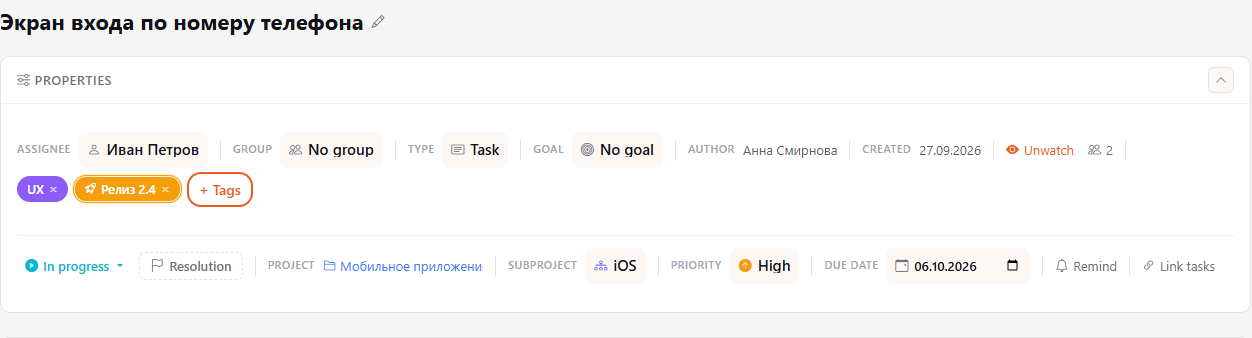
- Title — the task name. Click the pencil next to it to rename the task.
- Properties — assignee, group, type, goal, tags, status, resolution, project, subproject, priority and due date. Change any property right here: click it and pick a new value. Collapse the block with the arrow on the right.
- Details — the task description. Click Edit to change it.
- Checklist — the steps the task is split into. See Task checklist.
- Tabs at the bottom: - Comments — the task discussion, see Comments. - Files — all task attachments: upload, download, preview. To keep them tidy, sort files into folders: New folder, then Move to folder on a file or Upload to folder on the folder itself. A folder can be renamed, downloaded as an archive or deleted — its files are not lost, they stay under No folder. - Works — time spent and time planned, see Time tracking. - Activity — the history: who changed what and when.
File preview
PDF files, Word (docx) documents and Excel (xlsx, xls) and csv spreadsheets can be viewed without downloading: click the file name or the Preview button and the document opens over the page. For workbooks with several sheets, tabs with the sheet names are shown at the top. You can download the file with the button in the corner of the window.
- The preview shows the content and the main formatting, not an exact copy: complex Word layout may differ a little, Excel formulas are shown as ready values, charts and macros are not displayed.
- A spreadsheet shows the first 1000 rows and 60 columns of each sheet, and files larger than 15 MB have to be downloaded.
- Old doc and ppt formats, as well as pptx presentations, can be opened only by downloading for now. Images and PDFs still open at once.
- The same works in project and documentation files, and in client, lead and deal cards.
Task actions
- Task number in the top bar (for example,
mobapp-1) — click to copy it. - Arrows next to the number — go to the previous or next task of the same project.
- Watch / Unwatch — subscribe to task notifications. The number next to it shows how many people are watching; click it to see the list. The author, the assignee and administrators can add or remove watchers.
- Remind — creates a reminder to-do about the task for the date and time you choose. It appears in Todos.
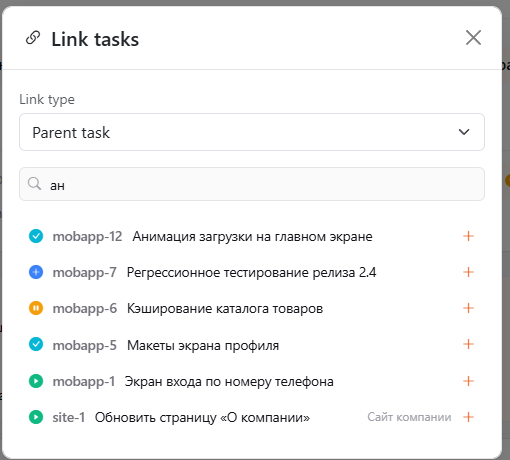
- Link tasks — link the task to another one. First choose the Link type, then find the task by title or code. Link types are described below in "Task links".
- Copy and Export — export the task with its full context as text (Markdown), for example to give it to an AI assistant.
Task links
Link types are kept apart, so the list of blockers shows only real obstacles.
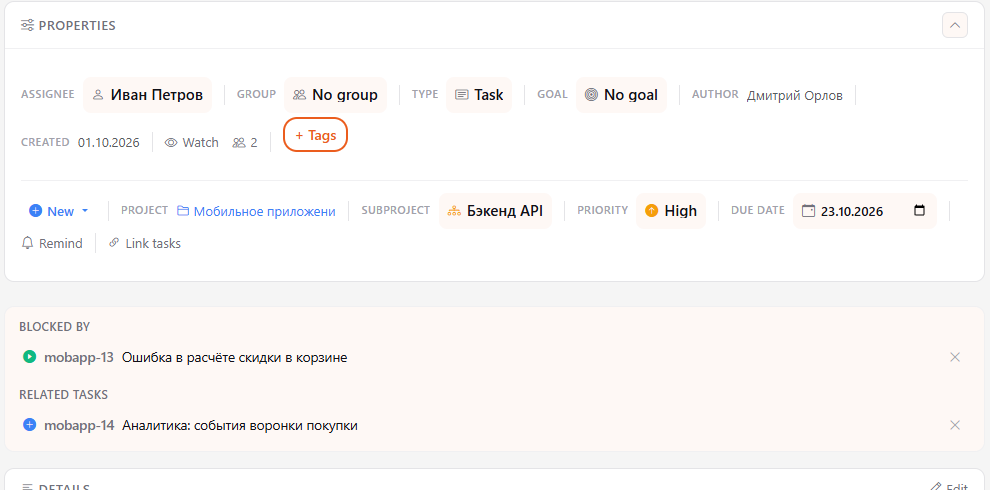
- Is blocked by / Blocks — order of work: until the blocking task is resolved, the dependent one can't be moved to Resolved. Only these links are shown on the kanban board and in lists.
- Parent task / Subtask — groups the work of one user story. In the parent task, next to the Subtasks heading, you see how many are resolved (for example 2/5). A task can have only one parent. A parent can be resolved without its subtasks.
- Relates to — tasks with a shared context that can be done independently.
- Duplicates / Is duplicated by — a repeated request. The duplicate task closes itself with the Duplicate resolution and a comment linking to the main task; work continues in the main task.
The parent task shows progress next to the Subtasks heading:

To remove a link, click the cross next to the task in the links block. A closed duplicate stays closed — return its status manually.
Tasks of one project can always be linked. Tasks from different projects can be linked only if both projects are public and have no access restrictions (no subprojects with their own rights). As soon as an access restriction is turned on in a project, it becomes private and its links to tasks of other projects are removed — see Project access.
The star in the top bar adds the page to Favorites — handy for tasks you come back to often.
Who gets notified
The author and the assignee become watchers automatically. Watchers are notified about new comments and changes of status, assignee and priority, and about new files. If you no longer need notifications for a task, click Unwatch.
Move a task to another project
The Move button in the task card (the fields row under the title) is available to the task author and administrators.
- Press Move, choose a project (and optionally a subproject) and confirm.
- A full copy of the task appears in the chosen project: author and assignee, comments, files, tags, checklist, watchers, work logs and estimates.
- The original task is closed with the resolution Moved, and a comment from "HubNext System" with a link to the other task is added to both.
A task can only be moved within one organization. A task with links (related tasks, parent, subtasks) cannot be moved — remove the links first. The author and the assignee must have access to the chosen project, otherwise the move is rejected.
Send a task by email
If you have been given the Send tasks by email capability, the task row has a Send by email button. Pick the Sender (your own mailbox or an organization mailbox), enter addresses in To (up to 10, separated by commas) and click Send. The Subject field is prefilled with the task title and can be edited before sending; the text is the description (a preview is shown in the window), and all task files are attached (up to 30 MB in total). The task history records the send. Replies do not come back into the task.
The capability is granted by the organization head — see People. The organization head and above can send without a grant. Connect your own mailbox in Profile → Mail; the head connects an organization mailbox in Marketing → Dashboard → Settings.
Browse tasks by tag
In the task header, next to the ‹ › arrows, there is a three-dots menu. By default the arrows switch tasks by number in the project. Choose Tag: name and the arrows will browse only tasks with that tag (including other projects you have access to).
Task SLA
If SLA is set up for your organization or project, the task's properties panel shows an SLA row: how much time went into reaction and resolution, the norm and the due time. You see only the SLA kinds available to you: a client sees the main one, staff the main and internal, administrators all of them.
The Meta tab (for administrators)
Administrators see a Meta tab on the task card. It holds system parameters of the task as "key — value", for example the task number in Redmine. Choose a key from the list, enter a value and click Add / update — if the key already exists, its value is replaced. The pencil puts the value into the form for editing, the trash can deletes the parameter.
The list of keys is kept by the superadministrator: Admin → Dictionaries → New record, with tblused = tasks, type = meta_key, value = the key (for example jira_key), ddata = {"label_en":"Name for the list"}. In the list on the tab a key is shown as "Name (key)". Only administrators can see and change the parameters; they do not appear in the task history.