CRM tags help you group clients, leads and deals: "Key client", "Retail", "Repeat sale". One tag can be put on a client, a lead and a deal alike — and then you can see all of them on one page.
CRM tags have their own cloud, separate from task tags: a client card doesn't offer task tags, and a task doesn't offer CRM tags. For task tags, see Tags and releases.
Where to find
Sidebar → Marketing → Marketing Tags. The arrow next to Marketing expands the submenu.

Each tag card shows how many clients, leads and deals are linked to it. Click a number to open the tag with that filter already applied. The Search tags field filters the list by name.
How to tag something
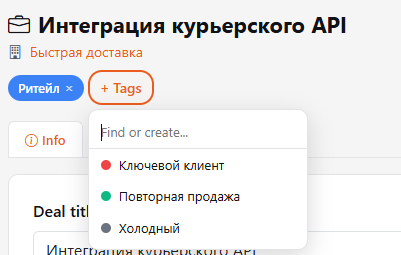
- Open a client, lead or deal card.
- Click + Tags under the title.
- Pick a tag from the list or start typing a name in the Find or create field.
- If the tag doesn't exist yet, click Create or press Enter — the tag is created and added to the card right away.
To remove a tag, click the cross on it.
In the clients list, tags are shown on the cards, and search finds clients by tag name too.
How to create a tag in advance
- On the Marketing Tags page, click New tag.
- Enter a Name and pick a Color.
- Click Create.
Tag page
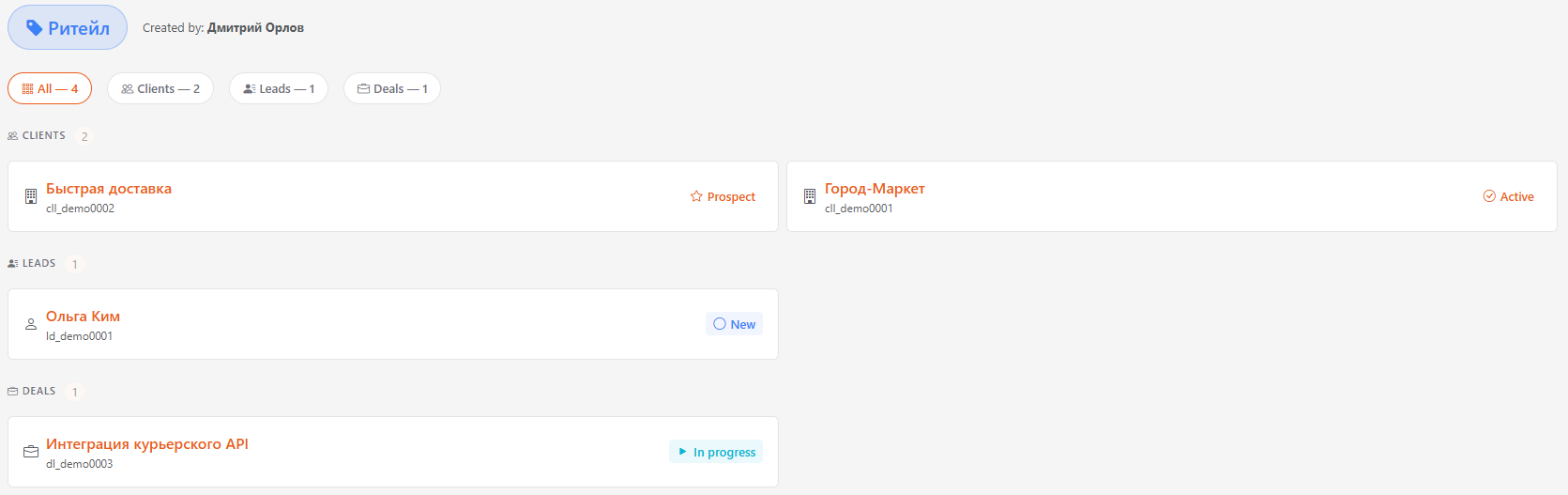
Click a tag in the list. At the top is who created it; below are the All, Clients, Leads, Deals filters with counts and the cards themselves with their current status. A name opens the client, lead or deal card.
How to delete a tag
Click the trash icon on the tag card in the list and confirm. The tag is removed from all clients, leads and deals. A tag can be deleted by the person who created it or by an administrator.