How to get into HubNext: sign in, register and join an organization, recover or change your password.
How to sign in
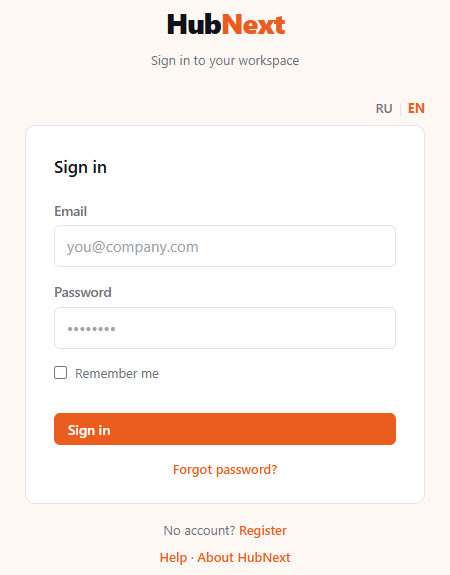
- Open HubNext — the Sign in page appears. The RU / EN links above the form switch the page language.
- Enter your Email and Password.
- To avoid typing your password every time, check Remember me — you'll stay signed in on this device for 30 days.
- Click Sign in.
If an administrator has already created an account for you, you don't need to register — sign in with the email and password they gave you, then change the password in your profile.
How to register
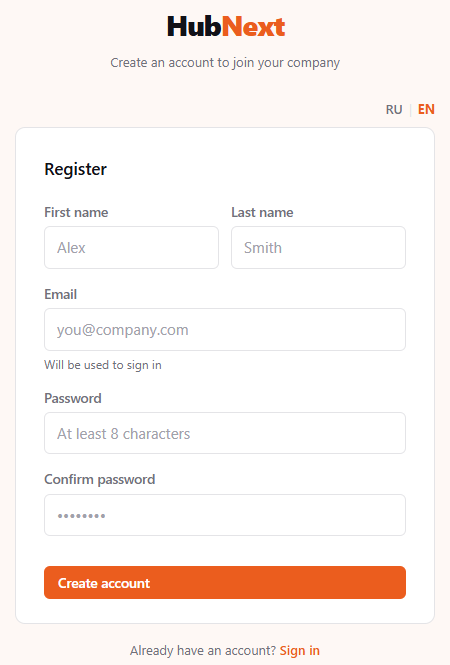
- On the sign-in page, click Register.
- Fill in First name, Last name and Email — it will be used to sign in.
- Choose a Password at least 8 characters long and type it again in Confirm password.
- Click Create account.
If an account with that email already exists, the system will tell you — then just sign in or recover your password.
How to join an organization
Right after registering you're not in any organization yet — the Welcome page opens.
- In the Company name field, enter your company's name.
- Click Send request.
- The Request Sent page opens: the administrator has been notified and will add you to the organization.
Until the request is approved you can't get into the system: when you sign in, the Welcome page opens again. There's no need to send the request again — wait until the administrator grants access, then sign in as usual.
To get your request reviewed faster, write the company name the way it's called in HubNext, and let your manager know you've sent a request.
Signing in with an emailed code
If an administrator has enabled sign-in by code for your organization, the sign-in form has a Sign in with an emailed code button. No password is needed.
- Click Sign in with an emailed code and enter your account email.
- Click Send code — you will receive an email with a 6-digit code and a Sign in without a password button.
- Type the code in Code from the email and click Sign in — or just click the button in the email and then Sign in on the page that opens.
The code is valid for 10 minutes and works once. After two wrong attempts it is cancelled — request a new one with Request a new code. If the email does not arrive, check your spam folder: the page does not say whether sign-in by code is enabled for an address.
How to recover your password
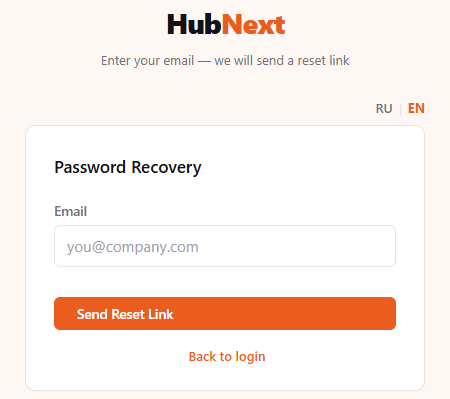
- On the sign-in page, click Forgot password?.
- Enter your email and click Send Reset Link.
- Open the email and follow the link. The link works for 1 hour and only once.
- Enter a New password at least 8 characters long, repeat it and click Save Password.
- Sign in with the new password.
The system always replies "If this email is registered, a message is on its way" — even if there's no such email. This way no outsider can find out who is registered in HubNext.
No email? Check your spam folder. You can request a link no more than 3 times in 15 minutes; if the link has expired, request a new one.
How to change your password
If you remember your current password, change it in your profile: click your name at the bottom of the sidebar → the Security tab. The new password must also be at least 8 characters long. More — Profile.