The HubNext screen has two parts: the sidebar with sections on the left, and the top bar with the current page's actions, the navigator, favorites and notifications.
Sidebar
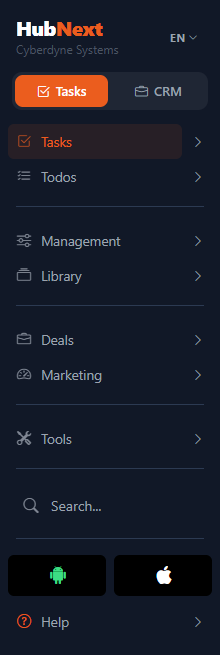
From top to bottom:
- Logo and organization name. The logo takes you to the home page — the Tasks section.
- RU / EN — the interface language switch to the right of the logo.
- Tasks | CRM — the mode switch under the logo (available when CRM is enabled for your organization). See Tasks and CRM modes below.
- Tasks — task dashboard and kanban. The arrow on the right expands the submenu: Projects, Tags, Goals and SLA (SLA — for heads and above). See Goals.
- Todos — your personal todo list. The number shows how many todos are not done yet.
- Management (submenu: Reports, People and more) — see Reports and People.
- Library (submenu: Documents and Knowledge base) — see Documents and Knowledge base.
- Deals (submenu: Clients, Leads, Duplicates) and Marketing (submenu: Products, Marketing Tags, Audiences, Templates, Mailings) — if CRM is enabled for your organization.
- Search — the search field, see below.
- Help — this help, opens in a new tab.
- Your name at the bottom opens your Profile. If you work in several organizations, a Switch organization arrow appears next to it.
- Log out — sign out of the system.
Tasks and CRM modes
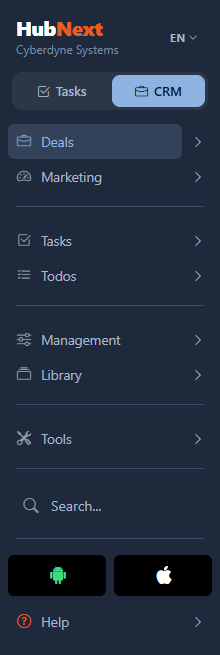
If CRM is enabled in your organization, there is a Tasks | CRM switch under the logo. It changes the order and color of the menu:
- Tasks — the menu starts with Tasks and Todos, dark color. The switch opens the task kanban.
- CRM — the menu starts with Deals and Marketing, slate blue-gray color. The switch opens the deal kanban.
All other sections stay in place, just lower. The system remembers the chosen mode for your user: the next time you sign in you will be in the same mode (from CRM you land straight on the deal kanban). If you open a page of the other mode, for example a task from an email link, the menu switches to its mode by itself. Shared pages such as Documents and Management do not change the mode.
How to collapse the sidebar
- Click the Collapse menu button in the top-left corner of the top bar.
- The sidebar shrinks to icons; hover over an icon to see the section name.
- To expand it, click the same button — Expand menu.
The sidebar state is remembered. On a phone the sidebar is hidden: the menu button on the left of the top bar opens it.
Top bar

- Breadcrumbs on the left show where you are, e.g. Projects › Mobile app. Each part is a link.
- Page buttons — each section has its own. In Tasks these are the Dashboard / Kanban switch and New task; on the projects page — New project.
- Navigator — jump to a task by its number, Alt+H. With an empty line it shows your Summary.
- Favorites — the star: your bookmarks to pages.
- Notifications — the bell. The number shows unread notifications; Mark all read marks the whole list.
Navigator
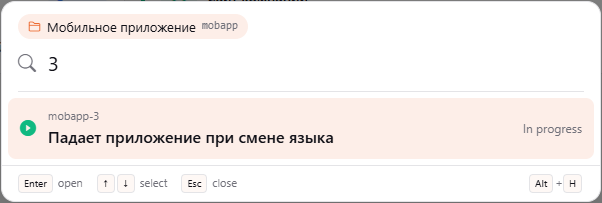
- Press Alt+H or click the navigator icon.
- Type a task number, e.g.
3, or the full code —mobapp-3. To switch the project, click the project pill above the input — a list of projects opens, which you can filter by code or name. Or just start typing a project code or name in the input. - Press Enter — the task opens.
More — Favorites and navigator.
Search
- Type a word into the Search field in the sidebar.
- Press Enter.
Search finds tasks, projects and doc pages, as well as comments — on tasks, pages, deals, leads and clients. A result shows where the comment was written, its author and a snippet with the found word; click it to jump there. You only see what you have access to (private task comments — administrators only).
If you know the task number, the navigator is faster than search: Alt+H, number, Enter.
Help
Help in the sidebar opens this section in a new tab. Sections and articles are on the left, Search help is at the top, and the article outline On this page is on the right. The Previous and Next buttons at the bottom of an article walk through the section in order.