Goals record what the team wants to achieve over a period: ship a release, close a number of deals, log a number of hours. HubNext shows each goal's progress and, when the period ends, decides on its own whether the goal was achieved.
Where to find
Sidebar → Goals. The table shows each goal's Title, Scope, Type, Period, Progress and Status.

Above the table are the All scopes and All types filters, Search by title and the My Goals button: it keeps goals where you're an assignee or where a target is assigned to you personally or to your group.
Two types of goals
- Basic — a goal with a free-form description. It has Assignees and Milestones — stages you tick off. Progress is the share of milestones ticked.
- By metrics — a goal with numeric Targets that HubNext calculates itself from system data for the goal's period. You don't enter the actual values by hand.
The Scope — Projects or CRM — defines which metrics are available in targets:
- Projects: Tasks closed (moved to Resolved or Closed during the period), New tasks (created during the period), Hours (logged work).
- CRM: Deals closed (moved to Success), Closed deals amount, Calls (the Call connected and Call missed actions in deals), New leads, New clients.
How to create a goal
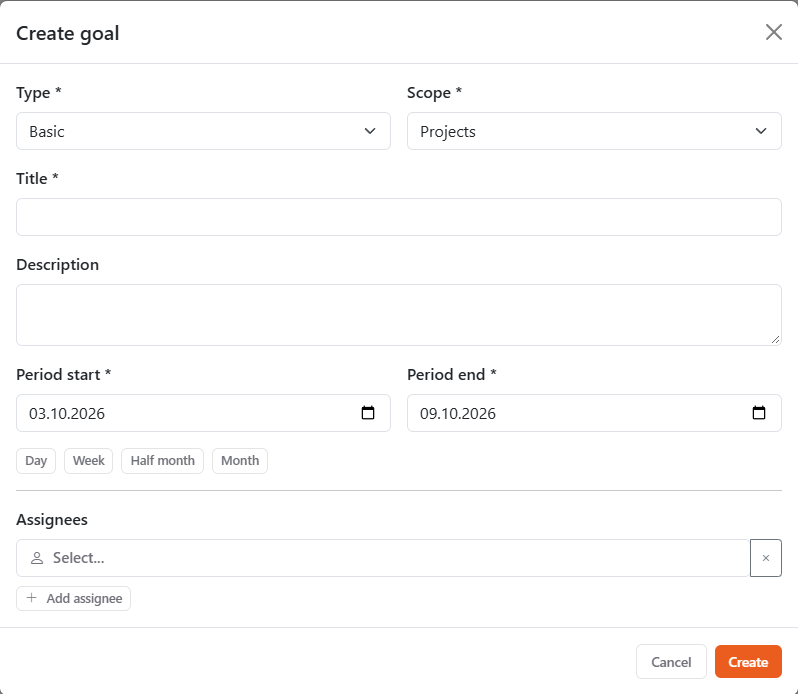
- Click Add goal.
- Pick the Type and Scope.
- Enter a Title and, optionally, a Description.
- Set the Period start and Period end — or click one of Day, Week, Half month, Month.
- For a basic goal, pick Assignees; Add assignee adds another row.
- For a goal by metrics, fill in Targets: Metric, Target value and who it's for — Person, Group or Whole organization. Add target adds another row.
- Click Create.
Goal page
Click a goal's title in the list. At the top are the status, scope, type and period; on the right are the Edit, Cancel goal and Delete buttons.
Basic goal
- Assignees — add a person via Select... and the + button, remove with the cross.
- Milestones — they are full-fledged todos: type a Milestone title, optionally pick the assignee and due date, and press Enter or +. The assignee defaults to the first person responsible for the goal (or you, if there are none); the chosen assignee stays for the next milestones. Like a task checklist: click the circle to change the status (new — in progress — done), the Discuss button opens a discussion, click the title to open the todo card (assignee, due date, description). Milestones also show up on the Todos page, on the Goals tab, for the person they are assigned to. Order is priority: drag by the handle on the left or move with the Move up / Move down arrow buttons (shown on hover). The header shows how many stages out of the total are done.
Goal by metrics
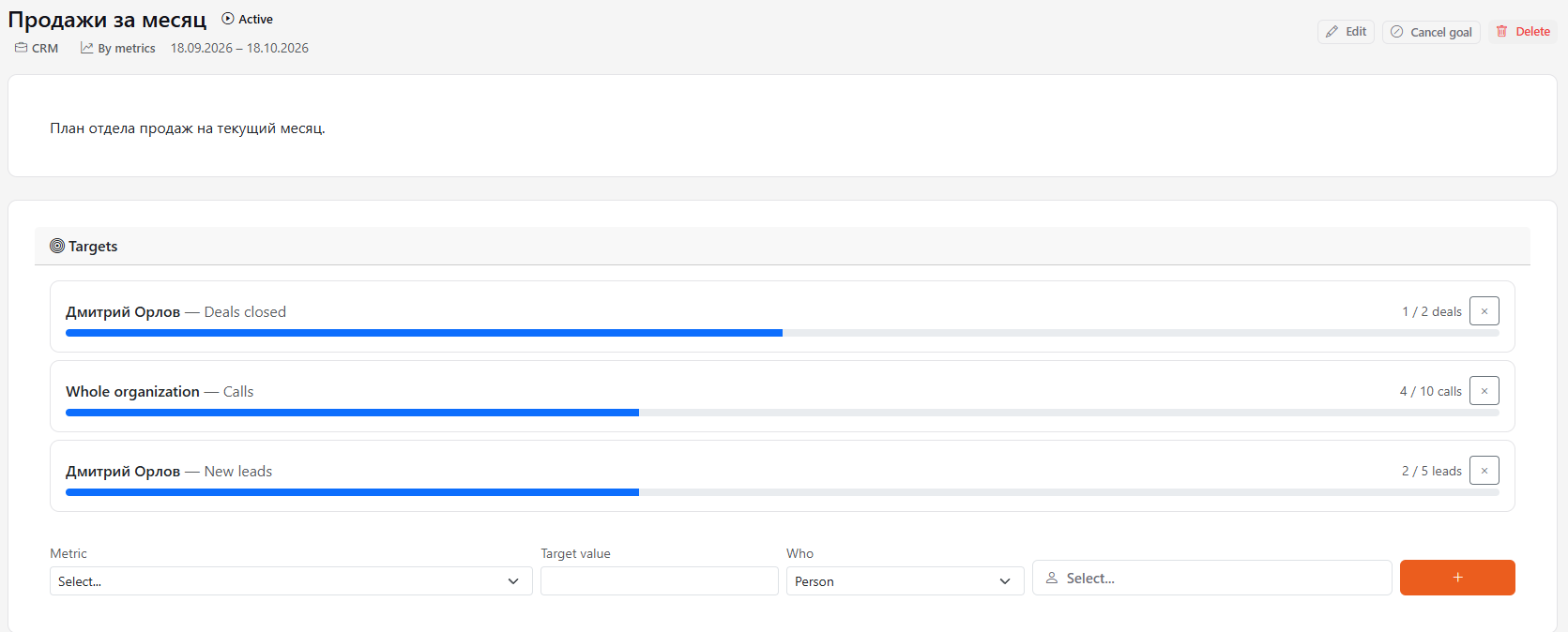
Each target is a separate progress bar: who, the metric, and how much has been reached out of the plan. Below is a row for a new target: Metric, Target value, Who and the + button. In the goals list, the progress of such a goal is the average across all its targets.
Linked tasks
You can link a task to a goal with the Goal field when creating the task or on its page. Such tasks are collected in the Linked tasks block on the goal page. Linking doesn't affect target calculations.
Statuses
- Active — the goal's period hasn't ended yet.
- Done — the period has ended and the goal was achieved: for a goal by metrics all targets are met, for a basic goal all milestones are ticked. A basic goal without milestones counts as done.
- Failed — the period has ended and the goal wasn't achieved.
- Cancelled — the goal was cancelled with Cancel goal. You can bring it back with Reactivate.
When the period ends, assignees get a notification saying whether the goal was done or failed. For goals by metrics, only people assigned to a target personally are notified. You can turn the notification off in your profile — see Notifications.
The Delete button removes a goal permanently. If a goal is simply no longer relevant, use Cancel goal instead — it stays in the list.