To send emails to clients from your own address, connect a mailbox. Emails go out through your mailbox's mail server, from your domain.
Where to find it
Profile → Mail
How to connect a mailbox
- Click Connect mailbox.
- Enter the Email and the Password of this mailbox. The name is optional — by default it is the address itself.
- Click Check. HubNext sends a test email to the same address and shows the result.
- When the check passes, click Save.
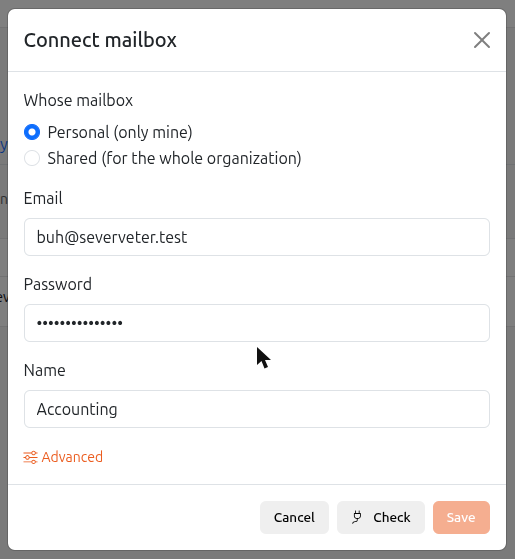
The mail server is detected from the address automatically. If it does not fit, open Advanced and enter the server, port and encryption manually — you can find them in your mail settings or ask your hosting provider.
A mailbox cannot be saved until the check passes. If you change the address, password or server, run the check again.
Connecting with a config
If a config (ready-made mail server settings) has been prepared for your organization, the connect window shows a Config field. Pick it — the server, port and encryption are already set, so you only enter the Email and Password, click Check and Save. If the config has a domain, the address must be on it. If there is no suitable config, choose Own server (manual) and fill in the details yourself.
Shared and personal mailboxes
- Personal — visible and available only to you.
- Shared — belongs to the organization, for example "Accounting". The organization head and above can connect and edit it; managers and above can use it.
When connecting, the head chooses Whose mailbox. Shared mailboxes can also be connected without the profile: in Marketing → Dashboard, the Settings section (visible to the organization head).
App password (Gmail, Yandex, Mail.ru)
These services do not accept your regular mail password for sending from programs. You need a separate app password:
- Turn on two-step verification in your mail account settings.
- In the security section, create an app password.
- Enter it in the Password field instead of your regular password.
For mail on your own domain at a hosting provider (for example, hoster.kz), the regular password usually works.
Password security
The password is stored encrypted and is never shown. When editing a mailbox the password field stays empty — leave it empty to keep the password, or enter a new one.
Advanced settings
Under Advanced: SMTP server, port, encryption, login (if different from the email), Sender name, Reply-to address and the Emails per hour limit. The limit protects you from being blocked by your hosting provider during a large mailing.
If the check fails
- Wrong login or password — check the password; Gmail, Yandex and Mail.ru require an app password.
- Could not connect to the server — check the server, port and encryption under Advanced. Port 465 with SSL or port 587 with STARTTLS usually works.