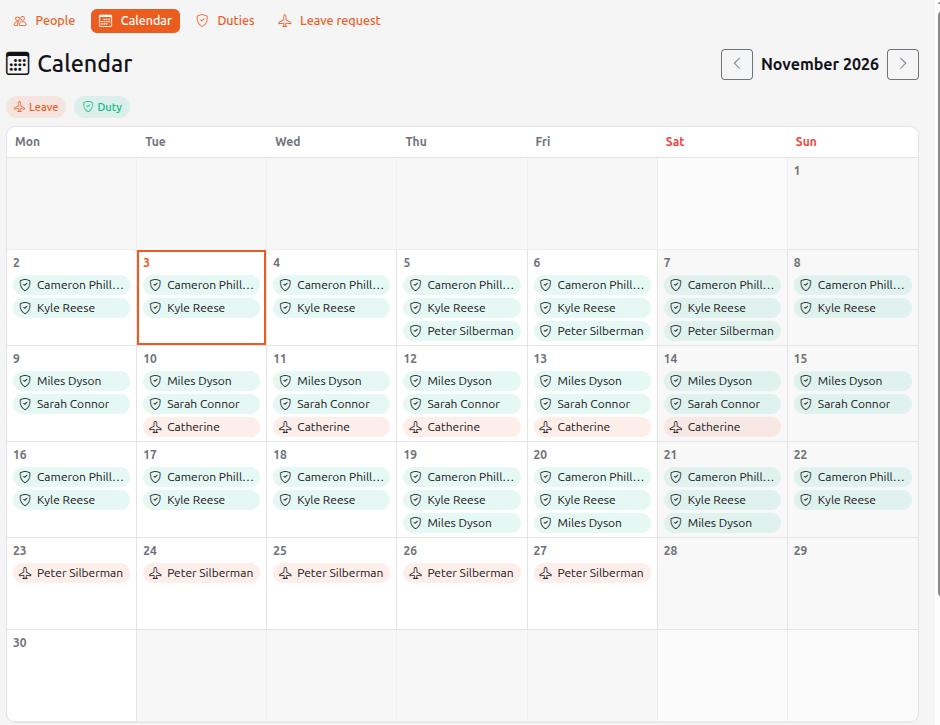
Management → People → the Duties button — duty schedules of employees. A duty is shown in the calendar in green (leaves are orange).
How it works
- A duty is a name and a description (for example, "Night support").
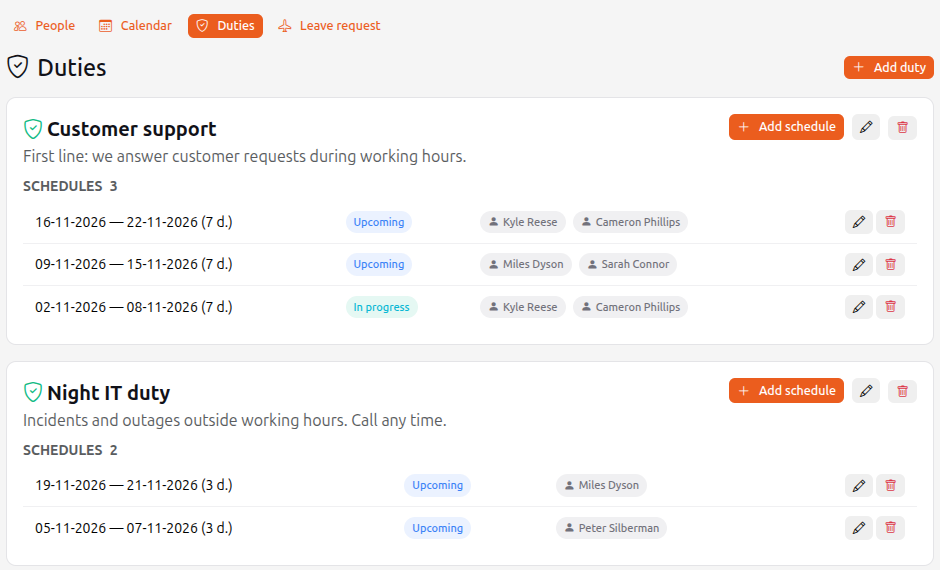
- One duty can have any number of schedules. A schedule is a period (Date from and Date to) and the people assigned to it.
- A person can be in several schedules, and schedules may overlap in dates.
Who can do what
- Managers and above create, change and delete duties and schedules.
- All employees except the "reports only" role can see duties and the calendar.
Create a duty and a schedule
- Open Management → People and press Duties.
- Press Add duty and fill in Name and Description.
- In the duty card press Add schedule, set Date from, Date to and tick the employees (the search accepts names in Cyrillic or Latin).
- Press Save. The pencil edits a schedule, the bin deletes it.
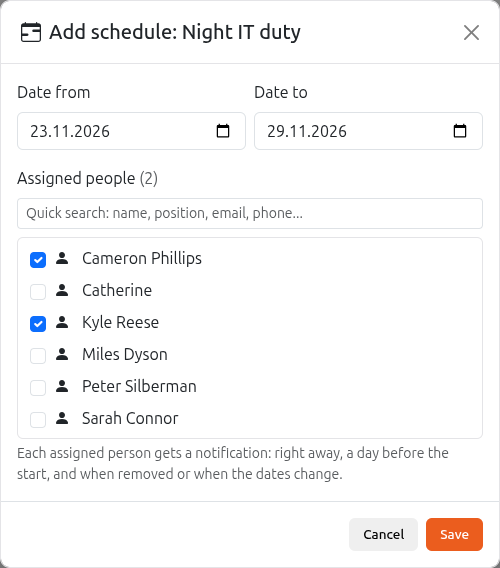
If someone assigned has an approved leave in these dates, HubNext shows a warning but still saves the schedule.
Reminders
Every assigned person gets a notification (bell, email, Telegram, push — as set in the profile):
- right away, when the person is added to a schedule;
- a day before the duty starts;
- when the person is removed from a schedule, the schedule or the duty is deleted, or the schedule dates change (after a date change the one-day reminder is sent again).
You can switch these notifications on or off in Profile → Notifications, the Duties group.
A person's duties
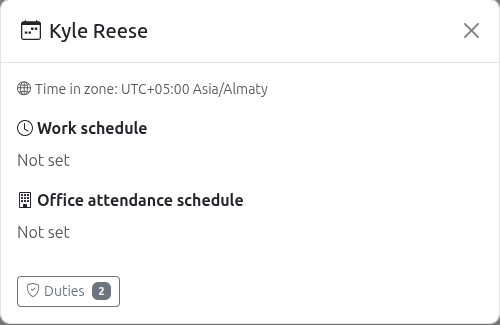
In People press Schedule next to an employee — at the bottom of the window there is a Duties link with the number of schedules. It opens every schedule the person takes part in, past and future.
Calendar
In People → Calendar duties and leaves are shown together. A colour legend is above the grid. Click a duty to open its card.