Context is a store of Markdown notes that your AI assistant (Claude and others) reads and updates: prompts, skills and instructions. You connect the AI once, and from then on it gets the same rules and memory on any computer. At the end of your work just say "update the context" and the AI saves the results itself.
Where to find it
Sidebar → Context
The section is turned on by the system administrator (the Context (memory and instructions for AI) module). It has four tabs: My context, Our context, Suggestions and Connect AI.
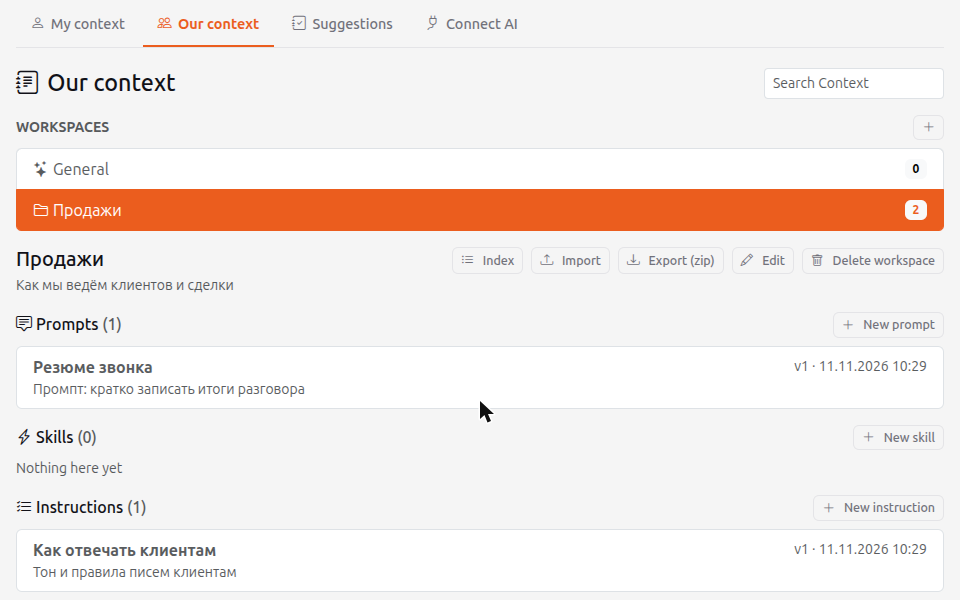
My context and Our context
- My context holds personal entries. Only you can see and change them. It is one per person: if you belong to several organizations, your personal context is shared between them.
- Our context holds the organization's entries, "how we do things here". Every employee (the User role and above) can read them; Heads and above can change them. Everyone else can suggest changes, see below.
Entries live in workspaces (for example "Sales" or "Support"). The General workspace always exists and holds rules without a specific topic. Inside a workspace, entries come in three kinds:
- Prompts: ready-made requests to the AI;
- Skills: descriptions of abilities and procedures;
- Instructions: rules and agreements.
How to add an entry
- Open My context or Our context.
- Create a workspace with the + button next to Workspaces, or pick an existing one.
- Click New prompt, New skill or New instruction.
- Fill in the Title, Short description and Text (markdown). The title and short description go into the index: the AI uses them to decide what to read, so make the description clear.
- Save the entry.
Do not store passwords, keys or tokens in Context. If a key or secret is found in the text, the entry will not be saved.
Versions and history
Every save creates a new version. The History button shows who changed the entry and when: a person or the AI, and through which client. You can view any version and restore it with Revert to this version, which creates a new version with the old text.
An entry you no longer need can be sent to the Archive; while Show archived is ticked it stays visible in the list and can be restored.
If an entry was changed while you were editing it, the system will not overwrite the other change: it shows the current text and keeps yours in the form so you can compare.
Index, search, import and export
- The Index is a list of all entries in a workspace with their descriptions. The AI reads it first, and it is updated on every change.
- The Search Context field looks through titles, descriptions and entry text, in Cyrillic and Latin.
- Import uploads
.mdfiles (up to 20 files, up to 100 KB each). ASKILL.md-style header (name,description) at the top of a file is taken into account. - Export (zip) downloads the entries of a workspace as
.mdfiles.
Suggestions for a Head
In Our context, users and managers do not change entries directly. They click Suggest a change (or Suggest an entry for a new one). The suggestion appears on the Suggestions tab, and Heads are notified.
A Head opens the suggestion, sees exactly what changes, and chooses Approve (the text can be edited before approving) or Reject (a reason can be given). The author is notified of the decision. A suggestion that has not been reviewed yet can be taken back with Withdraw suggestion.
If the entry changed after the suggestion was sent, approving shows a conflict: compare the text and approve again.
How to connect an AI
You make the connection yourself, no administrator is needed. The address to connect to is shown on the Connect AI tab.
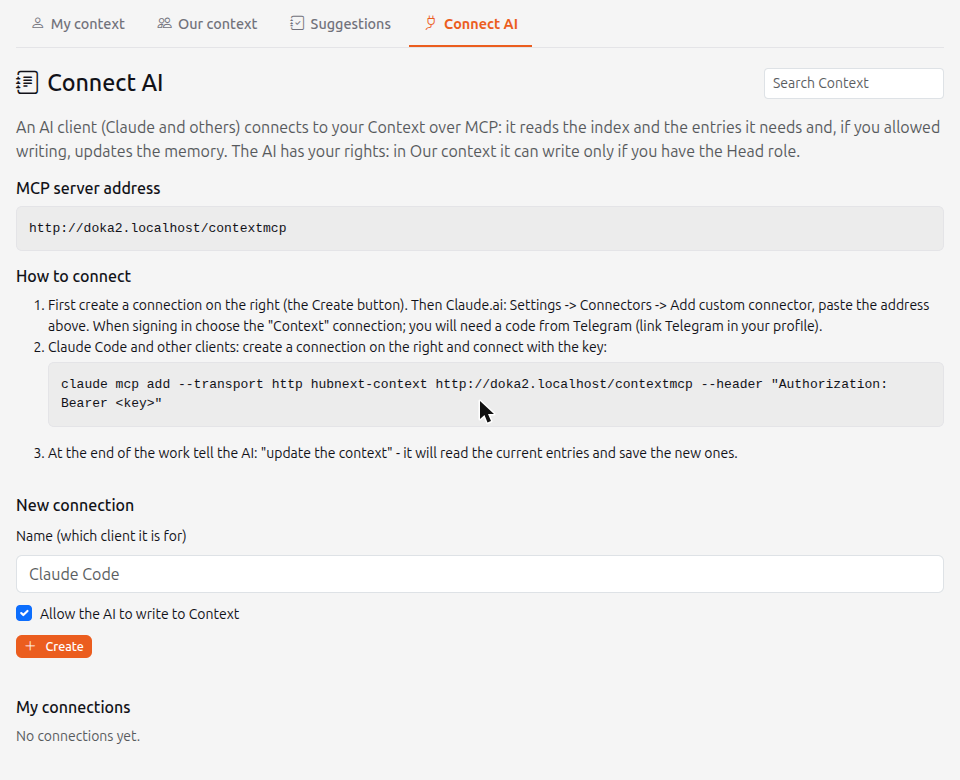
Claude.ai
- Open the Connect AI tab and create a connection: enter a Name (for example "Claude.ai") and click Create. Leave Allow the AI to write to Context ticked if the AI should update entries and not only read them.
- In Claude.ai open Settings → Connectors → Add custom connector and paste the MCP server address.
- When signing in, choose the "Context" connection. You will need a code from Telegram, so link Telegram in your profile beforehand (Profile and settings).
Claude Code and other clients
- Create a connection as above. The key is shown only once, so copy it right away.
- Run the command from the hint on the page:
claude mcp add --transport http hubnext-context <address> --header "Authorization: Bearer <key>".
A lost key can be replaced with New key, and a connection you no longer need can be closed with Revoke: the AI loses access at once.
Working with the AI
- At the start of a session the AI reads the index and opens the entries it needs.
- At the end of your work say "update the context". The AI reads the current versions and saves the new ones.
- The AI has your rights. In My context it writes at once. In Our context it saves at once for a Head, and for everyone else it sends a suggestion that a Head reviews.
- The AI never deletes or archives entries. The version history shows that a change was made by the AI.
Write entry descriptions so that one line tells whether the entry is needed. Then the AI will not read more than necessary.
Entry texts are read by other AI assistants. Do not paste unverified text from emails or websites into Context, so that hidden instructions do not get in.
Limits
- An entry is up to 100 KB, up to 500 entries per workspace, up to 20 workspaces in each context.
- The AI can write up to 60 times per hour per connection.
- Up to 10 connections per person.
- The "Guest" and "reports only" roles have no access to Context.