Clients are the companies and people you work with. The client card holds everything about them: contacts, legal details, billing terms, deals, products, todos, files and history.
Where to find it
Sidebar → Deals → Clients. The Marketing item in the sidebar opens the Marketing dashboard, as well as Products and Marketing Tags.
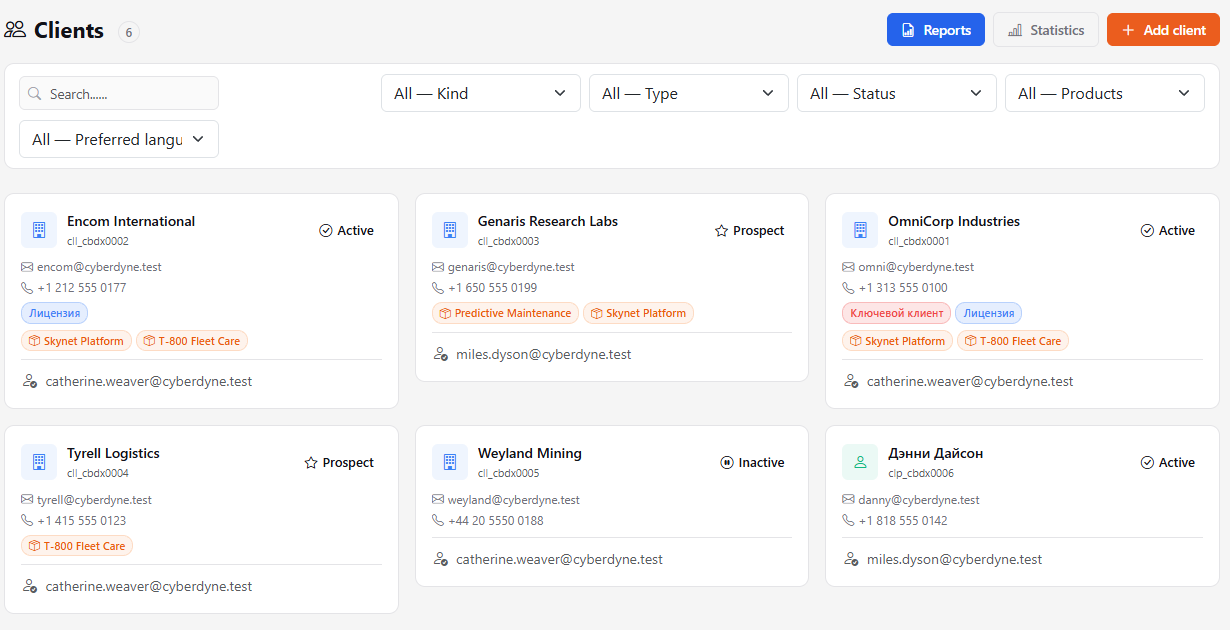
Client list
- List view — the Table / Cards / Kanban switch at the top right of the list; your choice is remembered. Table has compact rows (name, category, status, contacts, products, manager) and works best with many clients. In Kanban the columns are client statuses; drag a card to another column to change its status.
- Search — by name, email, phone, manager, tags and products; it searches all clients as you type. A long list is shown in batches — use Load more at the bottom.
- Kind (Legal entity / Individual), Category, Status (Active, Inactive, Prospect), Products (the clients that use a specific product) and Preferred language filters.
- Statistics — how many clients in each category.
- Reports — go to reports.
How to add a client
- Click Add client.
- Choose the kind of client at the top: Legal entity or Individual. Enter a company name or a person's first and last name, plus email and phone.
- Choose the Manager responsible for the client.
- Click Create.
Everything else is filled in on the client card.
Company and individual
The kind of client is chosen on creation and does not change later. Everything else is the same for both: Billing, Todos, Files, Communications, Activity, Deals, Products, tags and audiences. Only the set of fields differs.
An individual has First and last name, City, Services, Products, Status, Manager, Summary, email, phone and Preferred language on the Info tab. There are no company fields (Full name, Category, Scale, Founding year, Website), no Legal details block on the Details tab and no Contacts tab: a person's contacts are the email and phone on the card itself.
Roles: client and partner
Every company or person has Roles: Client, Partner, or both. Roles are ticked when you create a record and on the Info tab of the card (coloured role tags are shown next to the name).
- The Clients list shows only records with the Client role by default. Partners open separately: Sidebar → Deals → Partners.
- The Roles filter in the list lets you pick All roles, Client, or Partner.
- Add client on the partners list pre-ticks the Partner role.
- Role changes are recorded in the client's history.
Client card
The top shows the name, status, category and tags; to the right of the fields are the contacts, the Mail status and audiences. The fields on the Info tab are arranged in a compact grid: short ones (status, manager, language, year) share one row.
- Info — the main fields: name, full name, category (for example airline, travel agent, travel website), scale, headquarters, founding year, website, services, status, manager, summary, email and phone. Click Save after editing.
- Billing — the contract (number, date, type, currency), payment terms, billing period and requisites. A table of services with prices — via Add row.
- Todos — todos related to the client. Everyone in the organization sees them, and they also appear on the assignee's Companies tab in Todos.
- Contacts — people on the client side: Add contact, edit and delete. An individual does not have this tab.
- Details — free-form description: Basic information and Legal details.
- Files — contracts, invoices, presentations. Files can be sorted into folders (New folder, Move to folder) — details in Leads.
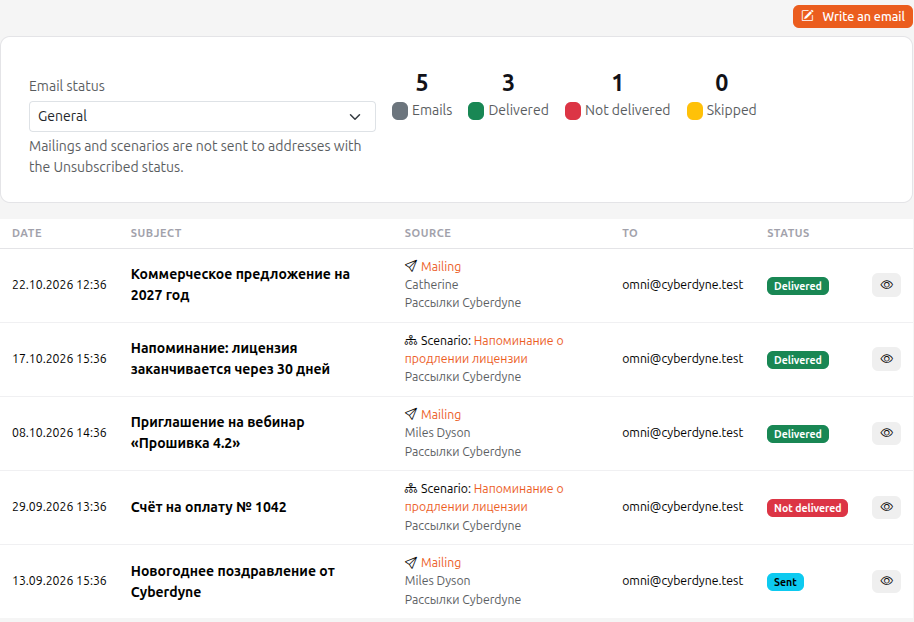
- Communications — emails from mailings and scenarios sent to this client: when, with what subject, from which mailing or scenario, to which address and how it ended (Queued, Sent, Delivered, Not delivered, Skipped). At the top you see the address's email status (you can change it) and the totals; the eye button opens the email itself. Emails sent to the client back when they were a lead are included too (marked as a lead). The Write an email button sends an email to this client right from the card: choose the sender (your mailbox or a mailing service), the subject and the text (separate paragraphs with an empty line) or an email template. The email goes through the mailing queue within a minute and shows up in the list at once; at most 30 personal emails per hour. An address with the status "Unsubscribed" cannot be written to. The tab is visible to managers and above. You can also send an email without the tab: click an email address (on a client, lead or deal card, or on a contact) and choose Send now — a window opens with To (the main address and the contacts' addresses), Sender (your mailbox first, then the organization mailbox and mailing services), Subject and Text; the Insert a quick reply list adds a text from Quick replies with the client's name, your name and the date filled in. The card journal (and the deal journal, if you wrote from the deal) keeps the recipient and subject, while the email itself stays on the Communications tab. Open in mail app works as an ordinary email link. If the organization has neither your mailbox nor an organization mailbox, the menu shows an inactive No mailbox line instead of Send now (it leads to your profile, the Mail tab).
- Activity — the client's change history.
- Deals — all deals with this client.
- Products — which of your products the client uses.
The + Tags button at the top of the card adds CRM tags — they have their own tag cloud, separate from task tags (Marketing → Marketing Tags), see Marketing tags.
Preferred language
The client card (Information tab) has a Preferred language field: Kazakh, Russian, English, German, French, Kyrgyz or Uzbek. It is Not set by default. It decides which language the client gets a mailing in when the email template has language versions (see Email templates). The client list has a filter by this field, and audiences have a Preferred language attribute.
Checklists
Below the client card there is a Checklist block, the same as in tasks: items with assignees and due dates, several checklists as tabs, the + button for a new checklist, and private checklists (administrators only). Details are in Task checklist.
An assigned item appears in the assignee's To-dos (the "Companies" tab), and the assignee gets a notification linking to the right checklist. Adding and completing items is recorded in the client history.
See also
- Leads
- Deals
- Products
- Mailings to clients — emails with invoices and statements from client folders