A deal is a specific sale: what you sell, to whom, for how much and by when. Deals form a funnel — a board with columns for each sales stage.
Where to find it
Sidebar → Deals. The Marketing dashboard has a summary of all deals: deals by status and recent activity.
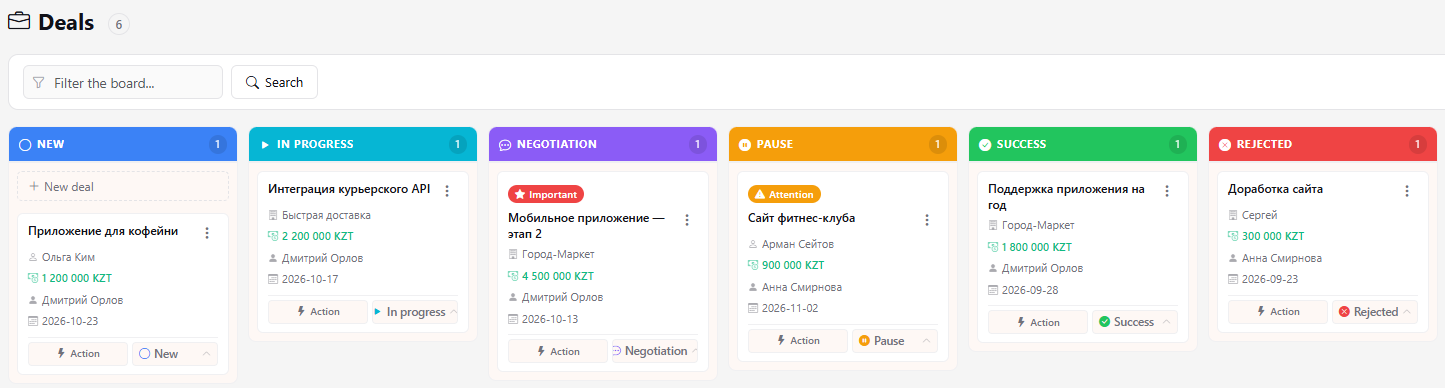
Funnel stages
New → In progress → Negotiation → Pause → Success → Rejected. The number in a column header is how many deals it holds.
How to create a deal
- Click Add deal at the top or New deal in the New column.
- Enter the Deal title, Sum and Currency, and set the Deadline.
- Choose the Counterparty: an existing client or lead — or create a new lead right here.
- Choose the Manager and click Create.
Card on the board
A card shows the priority, badge, title, counterparty, sum, manager and deadline. A coloured stripe on the left and a pill show the deal priority (High or Maximum; Normal has neither).
- The status button at the bottom of the card moves the deal to another stage.
- Action — quickly log what happened: Call connected, Call missed, Email started, Meeting scheduled, Online demo, Invoice sent, Payment received and more. The action is added to the deal history.
- ⋮ — set a Badge (Important or Attention) or Clear badge.
- Filter board and Search find a deal by title.
Click the title to open the deal.
Stale deals
If nothing happens with an open deal, the board reminds you it's time to get back to it:
- 3 days without activity — a yellow stripe on the left and the note "3 d without activity";
- 7 days or more — the stripe and the note turn red.
Activity is anything that goes into the deal history: a stage change, an Action, a badge, a comment, an edit of the deal. Only the New, In progress and Negotiation stages count — deals on Pause and closed deals are not highlighted.
The column header shows how many of its deals are stale, next to the deal count. The Stale button above the board shows only stale deals; click it again to bring back all deals.
Deal page
- Info — title, counterparty, sum, currency, deadline, Priority (Possible, Normal, High, Maximum; a manager or above can change it), status, manager and Resolution: Won, Lost or Cancelled.
- Counterparty on the right — when a client or lead is chosen for the deal, a highlighted counterparty card is shown on the right under the sum and deadline: name, full name (a lead shows its company), main email and phone, and its contacts with their type (Main, Decision maker, Basic). Phone and email are clickable; Open card leads to the client or lead, and if there are more than five contacts the rest are available through the "and N more" link. Clicking an email address opens a menu: Open in mail app or Send now (managers and above, when your own or the organization mailbox is connected); the sent email is recorded in the deal journal.
- Files and Activity — attachments and the full history, including quick actions.
- Delete deal — the deal is deleted together with its history; this can't be undone.
Log every touchpoint with the Action button: a week later the deal history shows right away when you called, what you sent and what you're waiting for.
Checklists
Below the deal card there is a Checklist block, the same as in tasks: items with assignees and due dates, several checklists as tabs, the + button for a new checklist, and private checklists (administrators only). Details are in Task checklist.
An assigned item appears in the assignee's To-dos (the "Companies" tab), and the assignee gets a notification linking to the right checklist. Adding and completing items is recorded in the deal history.
Funnels
Deals can be kept in several funnels. A funnel is a separate board with the same stages. The System funnel always exists and is visible to all staff. Other funnels are visible only to the people a manager has given access to, and to managers of the organization.
Funnel tabs are shown above the board — switch between them. If you only have access to one funnel, there are no tabs.
Moving a deal to another funnel is available to managers and above: use the funnel button in the card menu (three dots), or open the deal and click its funnel name. You can only move between funnels you can see. The move is recorded in the deal history.
Creating a funnel and giving access is available to heads and administrators: the Funnels button to the right of the tabs. When a funnel is deleted, its deals move to the system funnel.