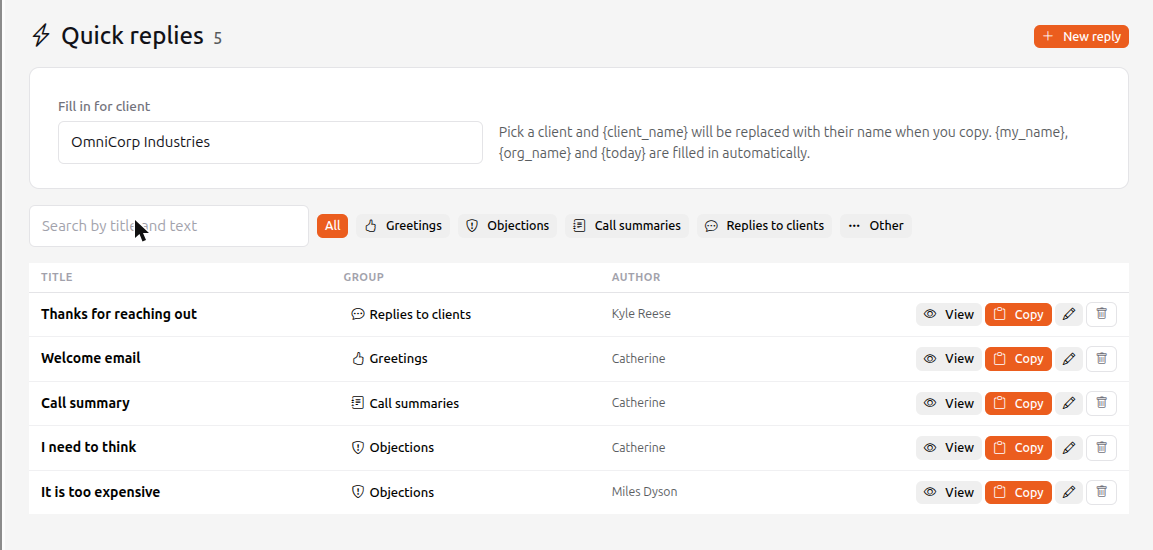
The Marketing → Quick replies section is a shared library of ready texts for your organization: welcome letters, answers to objections ("it is too expensive"), call summaries, replies to clients. The list is a table: title, group, author; the text opens in a view window and is copied with one button.
How to use
- Open Marketing → Quick replies.
- Find the text: search works on the title and the text (in Cyrillic and Latin), group buttons narrow the list.
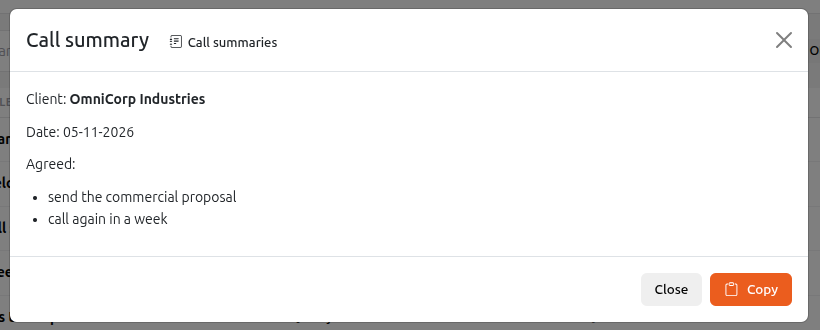
- Click View to read the whole text: it opens in a window with the variables filled in.
- Click Copy — in the list row or in the view window. The text goes to the clipboard: into an email it pastes with bold and lists, into a messenger as plain text.
Variables
You can write variables in curly braces in the text; they are replaced when you copy:
- {client_name} (or {имя_клиента}) — the name of the client selected at the top of the page in Fill in for client. While no client is selected the variable stays in the text and the system reminds you to pick one;
- {my_name} (or {моё_имя}) — your name;
- {org_name} (or {моя_организация}) — your organization name;
- {today} (or {сегодня}) — today's date.
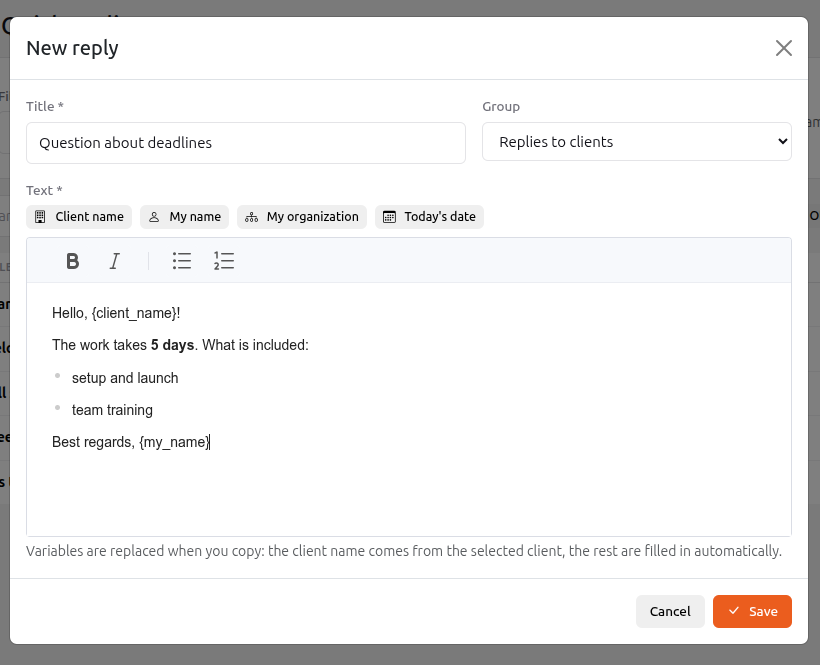
When you create a reply, you can insert variables with the buttons above the text field.
How to add and change
- Click New reply.
- Enter the Title, choose the Group (Greetings, Objections, Call summaries, Replies to clients, Other) and type the Text. The editor has bold, italic and lists (bulleted and numbered).
- Click Save.
Any employee can create replies. The author can change and delete their own reply, managers and above can change anyone's. All employees see all replies of the organization.
Move into quick replies whatever you write more than three times: a greeting, an answer to "too expensive", a call summary template.
A quick reply in an email to a client
The Send an email window (click the email address of a client, lead or deal and choose Send now) has an Insert a quick reply list: pick an entry and its text goes into the email with the client's name, your name, the organization and the date already filled in. The subject is filled with the entry title if you have not typed one yet.