Every project has its own knowledge base — pages with requirements, instructions and agreements. Pages form a tree of sections; you can attach files to them and watch them for changes.
Where to find it
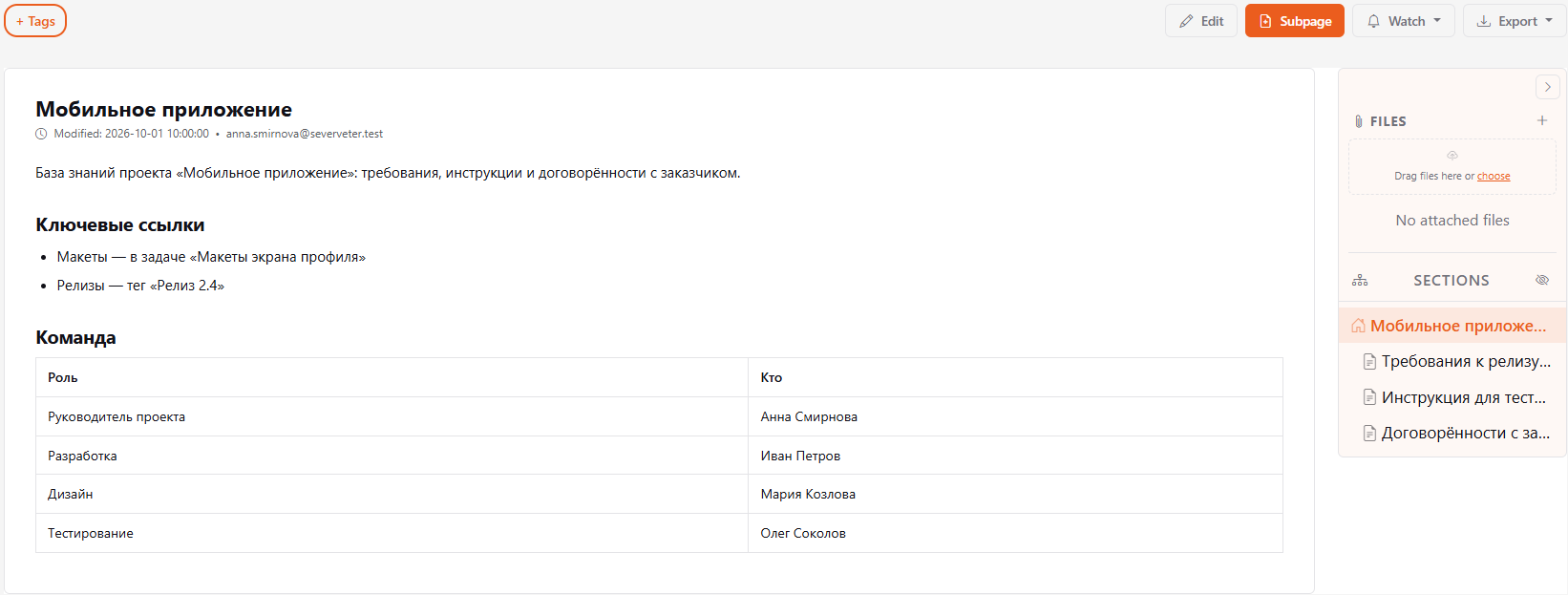
Open a project — the Pages tab opens first. On the right is a panel with the page's files and the Sections tree.
How to create a page
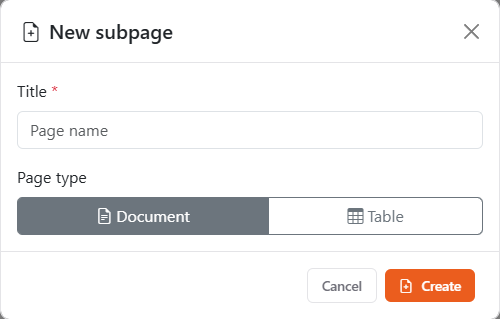
- Open the page the new one should go under and click Subpage.
- Enter a name.
- Choose the type: Document — regular text, or Table — a table with columns (see below).
- Click Create.
The project's main page is created automatically — the section tree starts from it.
How to edit
- Click Edit.
- Change the title and text. For editor features, see Text editor.
- Click Save. The cross next to it cancels editing without saving.
Anyone who can edit the project can edit its pages.
Table pages
A Table page is a table with columns, like a simple spreadsheet.
- Add column — set a name and a type: Text, Number or Currency.
- For numeric columns you can choose a summary: Sum, Average or Count — shown in the Total row.
- Add row — a new row at the bottom. Values are typed right into the cells.
Page files
The right panel has a Files block. Drag files onto it or click choose. Each file has buttons: preview, download, copy link, Insert into document and delete.
Watching for changes
The Watch button subscribes you to changes: This page only or Page and all subpages. The notification arrives about 30 minutes after an edit, so you don't get an email for every save. Stop watching turns it off.
Comments
Below the page text there is a Comments block for questions and clarifications about the document. Write a comment and click Send; you can edit or delete your own comments. Use @ to mention a colleague — they get a notification. The page author is also notified about a new comment. Guests of guest projects can neither see nor write comments.
Export
The Export button downloads the page as Markdown (.md) or opens printing, where you can save it as PDF.
Hidden pages
A page can be hidden from the section tree if it's outdated or needed only by part of the team. Hidden pages are marked Hidden; the eye icon in the Sections header shows or hides them.
Hiding removes a page from navigation but doesn't restrict access: anyone with access to the project can still open it via a direct link.
Deleting a page
If a page was created by mistake, open it and click Delete. A page can be deleted by its author, a project administrator, or a superadmin. The project's main page can't be deleted. If the page has nested pages, delete them first.
Tags
The + Tags button above the page adds tags — the same way as for tasks. A tag's page shows both tasks and pages with that tag.