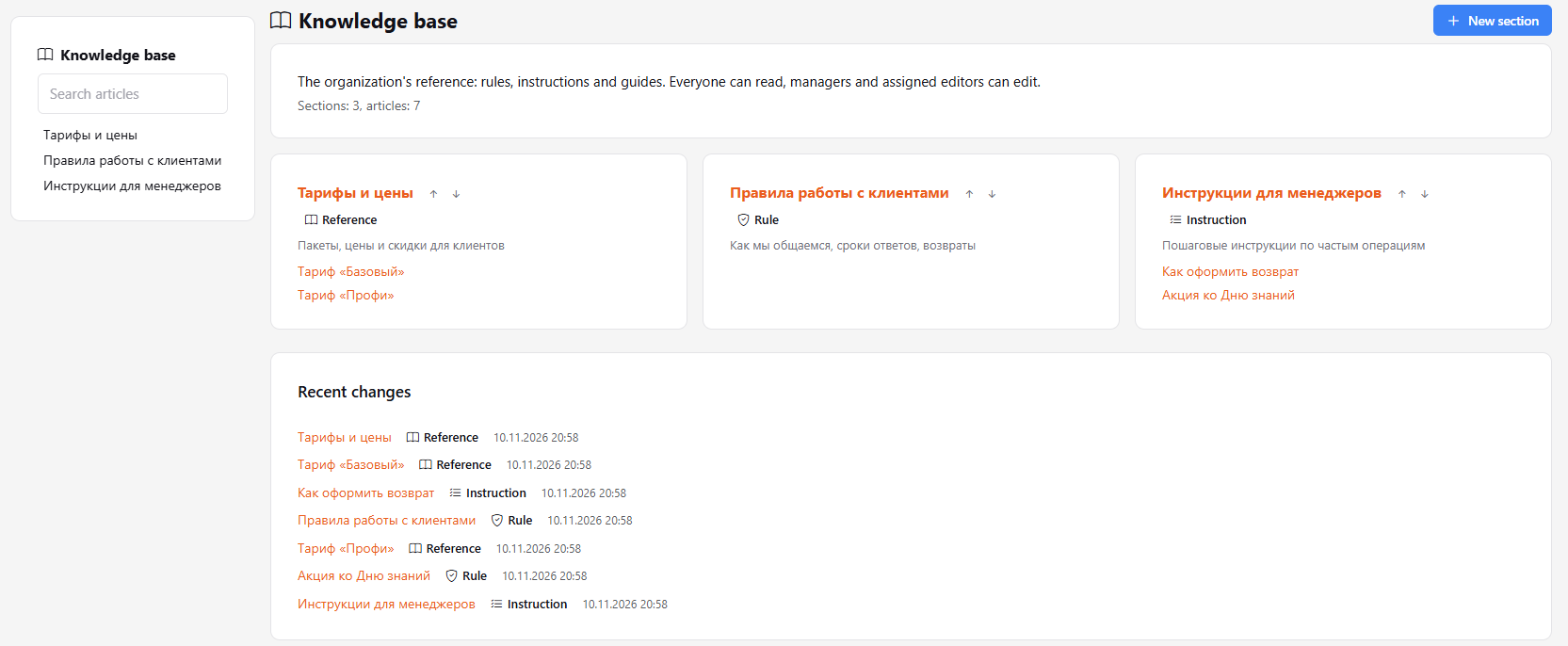
The Knowledge base is your organization's reference: prices and plans, working rules, instructions and guides. It is the one place where employees find "how we do it here" instead of chats and scattered files. The knowledge base belongs to the organization and is not tied to projects.
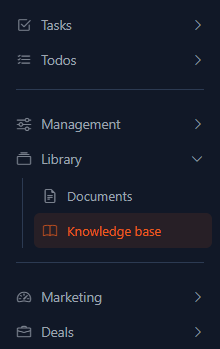
Where to find it
Sidebar → Library → Knowledge base.
All employees of the organization (role "User" and above) can read it. Project guests and the "Reports (view)" role have no access. Managers and above, and assigned editors, can edit articles — see How to write and edit articles.
How it is organized
Articles form a tree: section → article → sub-article and so on, with no depth limit. A section is a top-level article; on the home page it is shown as a card with the title, a short description and links to its first sub-articles.
Each article has a type:
- Reference — facts and numbers (prices, terms);
- Instruction — how to do something step by step;
- Rule — what is accepted and mandatory.
The type is a label, not a level in the tree: a reference can live inside any section.
How to read an article
- Open a section on the home page or in the menu on the left.
- At the bottom of the section card and inside the article you see the Sub-articles.
- If an article has two or more headings, a Contents list appears at the top: click an item to jump to that place.
- Under the title you can see when and by whom the article was last updated.
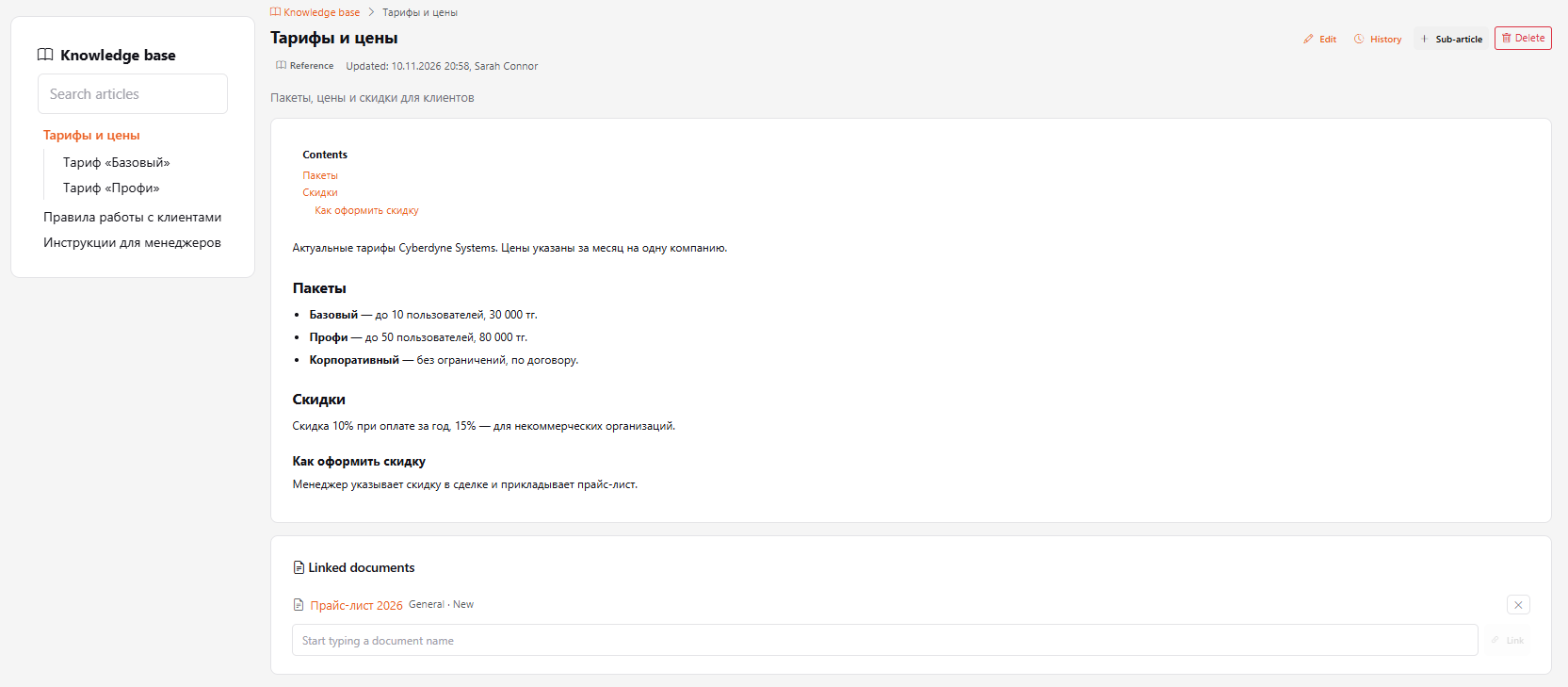
On the home page, below the section cards, the Recent changes block lists the latest updated articles.
Search
The Search the knowledge base field is on the left of every knowledge base page. Enter at least two characters and press Enter.
- It searches titles, short descriptions and article text.
- Titles are found in both Cyrillic and Latin: "tarif" finds "Тарифы".
- Results show a snippet around the found word, highlighted. Articles that match both the title and the text come first.
- You only see articles available to you: drafts are shown to editors only.
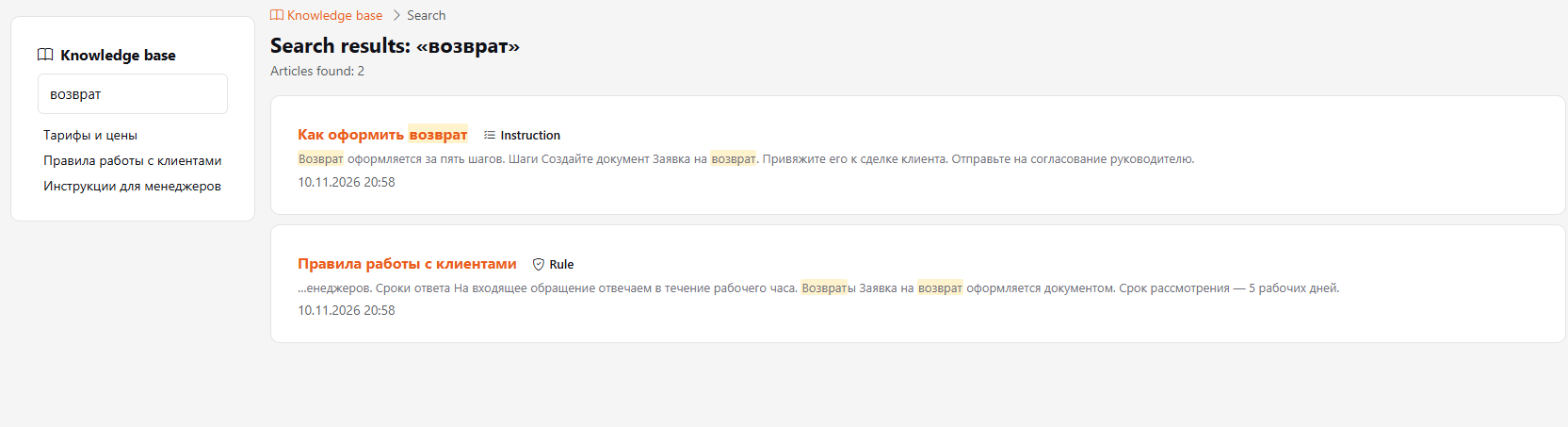
If nothing is found, try part of a word: "tarif" finds both "tariffs" and "tariff plan".
Linked documents
You can link documents from the Documents journal to an article — for example, a request form template attached to the refund rules. In the article they appear in the Linked documents block: title, type and status; the link opens the document card. You only see documents available to you.