HubNext tells you about important things in four ways: the bell inside the system, an email, a Telegram message and a push notification on a phone (the HubNext app, or the site on an iPhone Home Screen) and in the browser. You choose which events are sent by email, to Telegram and to your phone.
The bell
The bell in the top right corner shows notifications inside HubNext. The number on it is how many are unread. Click it to open the list; clicking a notification opens the task or page and marks it as read. Mark all read marks the whole list.
Bell notifications always arrive — the settings below control only email, Telegram and push.
Where to configure
Profile → Notifications. To open your profile, click your name at the bottom of the sidebar.
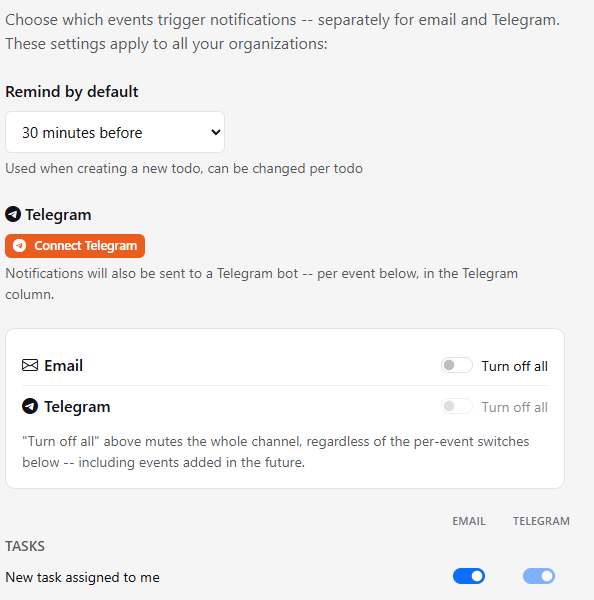
- Email / Telegram / Push — Turn off all — turns the whole channel off, including events added in the future.
- Below are switches for each event, separately for email, Telegram and push. The Push column is available once you have at least one device connected.
- Remind by default — the reminder time used for new todos.
Don't forget to click Save at the bottom of the page. The settings are shared across all your organizations.
Event types
- Tasks — a task is assigned to you; status, assignee, priority, type, title or resolution changed; a new release process stage; a file was added; you were added as a watcher; a checklist item was assigned to you.
- Todos — a new message in a todo discussion.
- Comments — a new comment, you were mentioned, a reaction to your task or comment.
- Projects — you were added to a project, a file was added to a project.
- Pages — a new page was created, a page you watch was changed.
- CRM — a new lead, a deal status change.
- Goals — a goal was achieved or failed.
- Auto Summary — a morning summary on weekdays around 10:00, see Summary and Auto Summary.
Task notifications go to the task's watchers. If you no longer care about a task, click Unwatch on its card — that's more precise than turning the event off entirely.
Connecting Telegram
- Profile → Notifications, click Connect Telegram.
- The HubNext bot opens in Telegram — press Start there.
- Done: you'll see Connected, and notifications will be duplicated to Telegram for the same events (the Telegram column).
To stop receiving Telegram messages, click Disconnect.
Want to connect later or from your phone? Click Copy link and send it to yourself. The link is valid for 1 hour: open it and press Start.
The HubNext app on your phone
The Android app opens the whole of HubNext — tasks, to-dos, CRM — and sends push notifications even when the app is closed.
- Download the app from hubnext.cc/android and install it on your phone. This is a beta version: if the phone asks you to allow installs from this source or offers to scan the app with Google Play Protect, agree.
- Sign in with your email and password. The sign-in is remembered for a long time, so you won't need to type the password again.
- Allow notifications when the phone asks.
- Done: under Profile → Notifications, the HubNext app block shows your device, and the events table gets a Push column.
Tapping a notification opens the right task or page in the app. Send test push checks that notifications arrive. Remove unlinks the phone; the same happens when you sign out of the account in the app.
If another user signs in to the app on the same phone, the previous user's notifications stop arriving on it.
Notifications on iPhone and in the browser
You do not need an iPhone app: add HubNext to your Home Screen and it opens like an app and sends you notifications. You need an iPhone with iOS 16.4 or later and the Safari browser. A step-by-step guide with pictures is on hubnext.cc/iphone.
In short: open HubNext in Safari → Share → Add to Home Screen → turn on Open as Web App → Add. Launch HubNext from the new icon (not from Safari), open Profile → Notifications and tap Turn on notifications, then Allow.
The same works in a browser on desktop and Android: under Profile → Notifications, in the Notifications on this device block, click Turn on notifications. To stop receiving them on this device, click Turn off on this device. When you sign out, notifications on this device stop; after you sign in again they turn back on by themselves.
If you delete the HubNext icon from the Home Screen, notifications stop arriving on that iPhone — add it again and turn notifications on once more.
Announcements
Sometimes the HubNext team publishes announcements — news and important changes. There are two kinds:
- Regular — a banner at the top of the page. It disappears on its own after a few seconds, and you can close it with the cross. Each regular announcement is shown to you once.
- Mandatory — a window over the page marked Must read. It can only be closed with the Got it button: this way it's clear you've read it. If there are several mandatory announcements, they open one after another.
An announcement can be addressed to everyone or only to some people — for example, one organization, project or role. Announcements can't be turned off in the settings.