Your profile holds your details, the look of the system, notifications, your password and a personal report.
Where to find it
Click your name at the bottom of the sidebar.
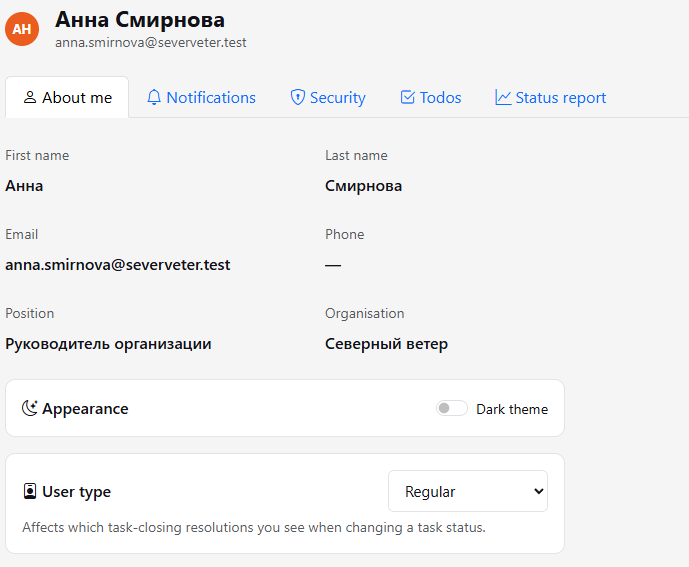
Profile tabs
- About me — name, email, phone, position and organization. Dark theme, Profile and Time zone are here too.
- Notifications — what to send by email, to Telegram and to your phone (push), see Notifications.
- Security — change your password: enter the current password, the new one (at least 8 characters) twice, then click Change password.
- Todos — your todos, as in the Todos section.
- Status report — your report for a month or a custom period.
Dark theme
The Dark theme switch on the About me tab turns on the dark look. The choice is remembered for your account.
Profile
Regular, Developer or Sales. The type affects which resolutions you see on tasks: developers see development resolutions, sales see their own. Regular sees all of them. See Resolutions.
Time zone
The Time zone on the About me tab is saved as soon as you pick it. It sets the time shown for comments, activity and work entries, and the Auto Summary arrives on weekdays around 10:00 in your time zone. If your browser's time zone differs from the selected one, HubNext will offer to switch once. Deadlines and other dates without a time do not depend on it. See Summary and Auto Summary.
Language
The RU / EN switch is at the top of the sidebar, next to the organization name. It changes the language of the whole interface and of this help.
Status report
For the selected month or period the report shows:
- Hours in period — how much time you logged on tasks;
- Avg. reaction time — how fast you pick up tasks;
- Overdue right now — how many of your tasks are overdue, with a list;
- Tasks by status.
The Confirm this month's report button locks the report in: you need to enter your password to confirm. Confirmed reports are kept in the history.
If you're in several organizations
The current organization name is at the top of the sidebar, under the logo. If you belong to several, switch with the Switch organization button at the bottom of the sidebar.
Comments order
On About me, choose how the comments feed is shown in tasks: Oldest first or Newest first. The choice applies to all tasks; you can also switch and remember it right in a task. See Comments.
Profile photo
In the Profile header click Upload photo and pick an image (JPG, PNG, WebP or GIF up to 5 MB). The photo is cropped to a square from the center and shown in the sidebar, task comments, the People list, people reports and project activity. Remove photo brings the initials back.