Access defines who can see a project and what they can do in it. It's set when the project is created and can be changed later on the Access tab.
Public and private projects
- Public — everyone in the organization can view the project's tasks. Managers and above can edit them.
- Private — only the owner, administrators and people granted access explicitly.
The access type is shown on the project card in the list and in the project header.
If you turn on an access restriction inside a public project (a subproject with the Custom access mode), the project automatically becomes private and links of its tasks to tasks of other projects are removed. While the project has such subprojects, it can't be made public.
Access levels
- view — read only — see the project's tasks and pages.
- edit — editing — create and change tasks, pages and subprojects.
- manage — management — all of the above plus project settings and granting access to others.
The project owner and administrators always have full access.
How to grant access
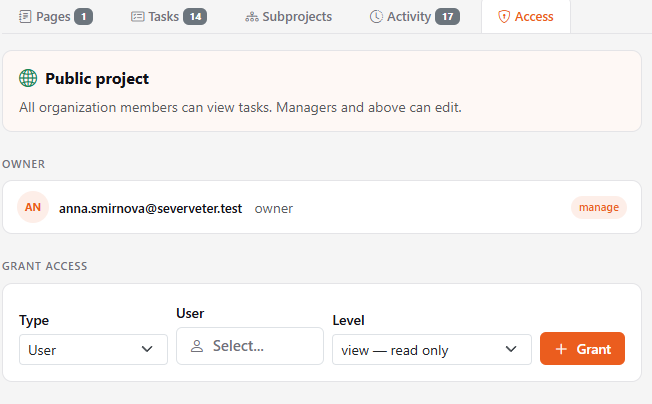
- Open the project, the Access tab. It's visible to those who can manage the project.
- In Grant access, choose the type: User or Whole organization.
- If you chose a user, pick them from the list.
- Choose the Level and click Grant.
Granted access is listed below. To take access away, click Revoke access next to the row.
For a private project with a small team, it's convenient to give each member edit and the lead manage.
If you don't have access
If you open a link to a task or project you have no access to, you'll see an access error page. Ask the project owner or an administrator to grant you access.