A guest project is a project you can invite outside people to: a customer, a contractor, a partner. A guest signs in from an e-mail link, sees only this project and works with its tasks. The rest of the organization stays closed to them.
Where to find it
- Create a guest project: Sidebar → Tasks → Projects → New project, the Guest project checkbox.
- Manage the guests of one project: the project → the Guests tab. The tab exists only in a guest project and only for the project owner and administrators.
- All guests at once: Sidebar → Management → People → Guests button. An owner sees the guests of their own guest projects, an administrator sees all of them. The same actions: resend invitation, change password, revoke and restore access.
How to create a guest project
Guest projects are created by organization managers (and above).
- Click New project.
- Fill in the name and tick Guest project.
- Save.
A guest project is always private. An existing project cannot be turned into a guest project, nor the other way round: the checkbox is set only when the project is created.
Employees get access to a guest project as usual, on the Access tab.
How to invite a guest
- Open the project, the Guests tab.
- In the Invite a guest block fill in Email, Phone, Last name, First name. Organization (optional) can be left empty.
- Click Invite.
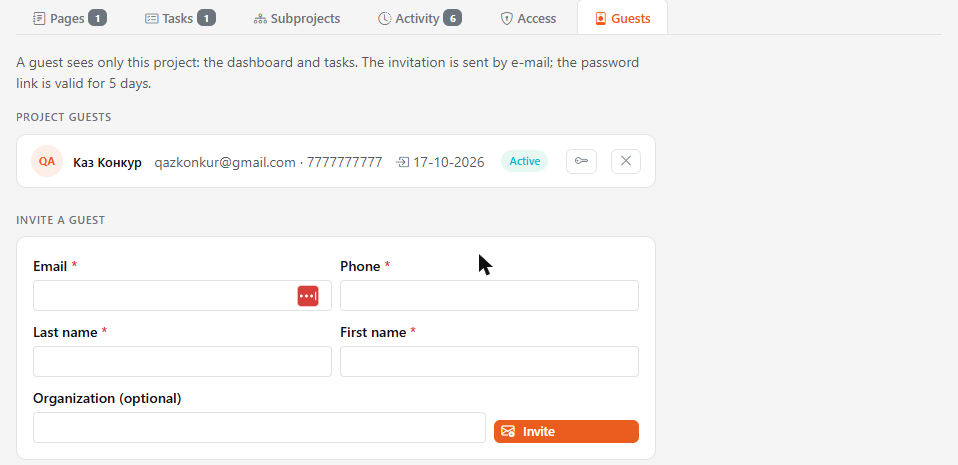
The guest receives an e-mail with a link. They follow it, set a password and land in the project right away. No separate registration is needed.
The link is valid for 5 days and works once. If it has expired, the invitation shows the Link expired status on the Guests tab — choose Resend invitation to send a new one.
If the address is already in the system — as an employee or as a guest of another project — it cannot be invited. Use another address. A guest can belong to one project only.
What a guest sees and does
The guest's menu has three items: Dashboard, Kanban and Log out.
- Dashboard shows three lists: My tasks, Tasks from me and Watched tasks — for the guest project only.
- Kanban is the board of this project's tasks.
- Inside the project a guest works like a regular user: creates tasks, comments, changes status, attaches files, assigns people of the project as assignees.
A guest does not see other projects, documents, CRM, reports, the list of the organization's employees or private comments. The assignee and mentions (@) are chosen only among the people of their project: the owner, members with access and other guests.
If SLA is set up in the organization, a guest sees only the main SLA of their tasks — in the task card and via the stopwatch button on the dashboard.
A guest does not change their own password or profile — the project owner does it.
Managing guests
On the Guests tab each guest shows contacts, status and the date of the last sign-in. Statuses: Invited, Link expired, Active, Access revoked.
- Resend invitation — a new link; the previous ones stop working.
- Change password (by link) — for an active guest: they receive a link to set a new password.
- Revoke access — the guest is signed out immediately and cannot sign in again.
- Restore access — for a revoked guest: access is back and they receive a new link to set a password.
Invitations, resent links, revocations and the guest's first sign-in are recorded in the project Activity.