Comments are the task discussion, right on the task card. Questions, answers, links to results — everything stays next to the task instead of getting lost in messengers.
Where to find it
Open a task, the Comments tab at the bottom of the card. The number on the tab is the number of comments.
How to write a comment
- Type in the Add comment field below the list. You can format text and insert links, tables, images and code.
- Click Send.
All task watchers are notified about the new comment.
The arrows button above the field opens a full-screen editor — handy for long text. If you leave the page without sending, the text is saved as a draft and restored next time.
Mentions
Type @ and start typing a name — a list of people appears. Pick someone: the mentioned person is notified even if they don't watch the task.
If you mention someone who can be assigned to the task, a warning "The task will be reassigned to …" appears above the form and they are put into the Assignee field. Click Do not reassign to post the comment without handing the task over.
Reassigning from a comment
Next to the Add comment heading there is an Assignee field. By default it shows the current assignee, so nothing changes. Pick someone else and the task moves to them together with your comment.
Replying to a comment
Click Reply on a comment. An editor opens with a quote, and the task is handed over to the author of that comment — they become the assignee. This is a convenient way to return a task to whoever asked the question. If you do not want to hand the task over, click Do not reassign in the warning above the editor.
Reactions and links
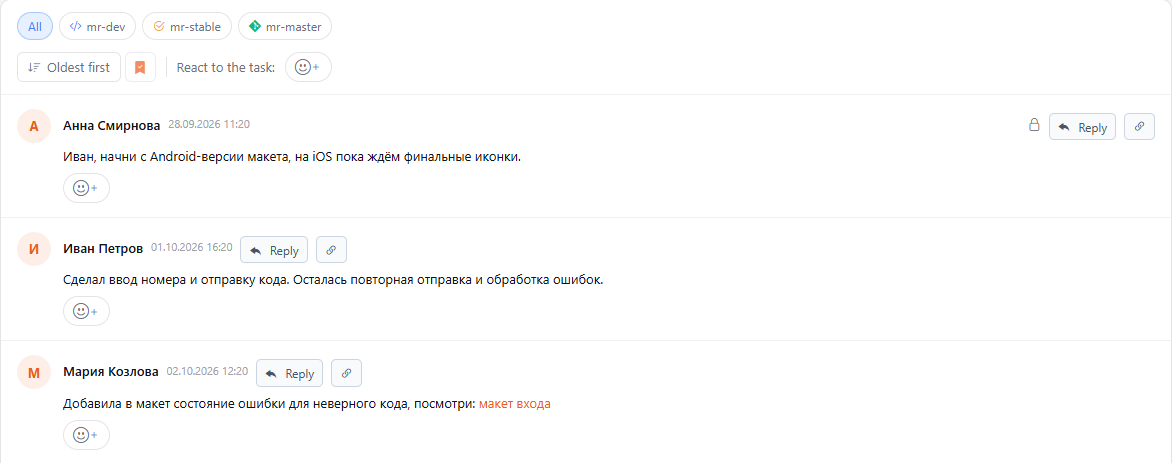
- The smiley under a comment adds a reaction.
- React to the task above the list — react to the task itself without writing a comment.
- The link button on a comment copies a link to it — a colleague opening it lands right on that comment.
Editing and deleting
You can edit or delete your own comments — the buttons appear on them. An edited comment gets a mark saying so.
Private comments
Administrators can write private comments: use the Public / Private switch next to Send, and the lock on a comment changes its visibility. Only administrators see private comments; they don't send notifications and don't appear in the task history.
mr-dev, mr-stable and mr-master comments
In organizations with the development process, a comment can have a type — for example, when you post a merge request link.
- Choose the type in the list next to Send.
- In Hand the task over to, choose a person — the comment won't be sent without it.
- Click Send.
The task is reassigned to the chosen person, and a checklist item with the comment text is created for them — they are notified right away. The mr-dev, mr-stable and mr-master buttons above the list show only comments of that type.
Feed order
Above the feed, to the left of the React to the task row, there is an order switch: Oldest first (default) and Newest first. With Newest first the Add comment field sits above the feed and the latest comments come first, so you don't have to scroll a long history to reply.
The switch changes the order only for the current view. To apply it to all tasks, click the bookmark icon next to it — the choice is saved to your profile. You can also change it there: Profile → About me → Comments and activity order.