A resolution refines the task status. The status says "In progress", and the resolution says what exactly is happening: "Analysis completed", "Waiting for client", "In review". This way the team sees the real state of things without reading the comments.
Where to find it
On the task card, in the Properties block — the Resolution button next to the status.
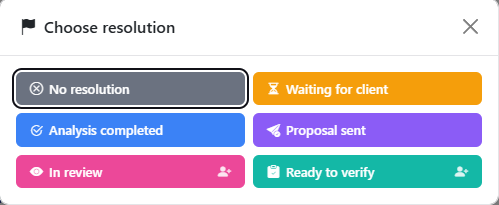
How to set a resolution
- Click Resolution.
- Pick an option. To remove the resolution, choose No resolution.
A task can have only one resolution. Anyone with access to the task can set it. Watchers are notified.
Resolutions that hand the task over
Some resolutions have a person-with-plus icon — for example, In review or Ready to verify. They pass the task on:
- Choose such a resolution.
- Pick who to hand the task over to.
- Click Save.
The chosen person becomes the task assignee. For example, a developer finishes the work and sets In review, choosing a reviewer — the task immediately goes to the reviewer.
Good to know
- The set of resolutions depends on the task status: each status has its own options.
- It also depends on the Profile in your profile: developers and sales each see their own resolutions, Regular sees all.
- Changing the status clears the resolution — set it again for the new stage.
- The list of resolutions is configured by the system administrator.
On the kanban board, turn on Grouping → By resolution — tasks within each column are split by resolution, so you immediately see what's waiting for review and what's waiting for the client.