Stacks help you sort your own tasks by urgency: "now", "soon", "later". A stack is a personal ordered pile of tasks that only you can see. You can reorder tasks with the mouse, and the stack color highlights its header and left edge.
Where to find it
Tasks → Dashboard, the My tasks block: a Tasks / Stacks switch on the right of its header. The selected mode is remembered.
In Stacks mode the stacks of each organization go one under another: Now, Soon, Later. A stack with tasks is colored, an empty one is gray. Click a stack header to collapse or expand it; your choice is remembered.
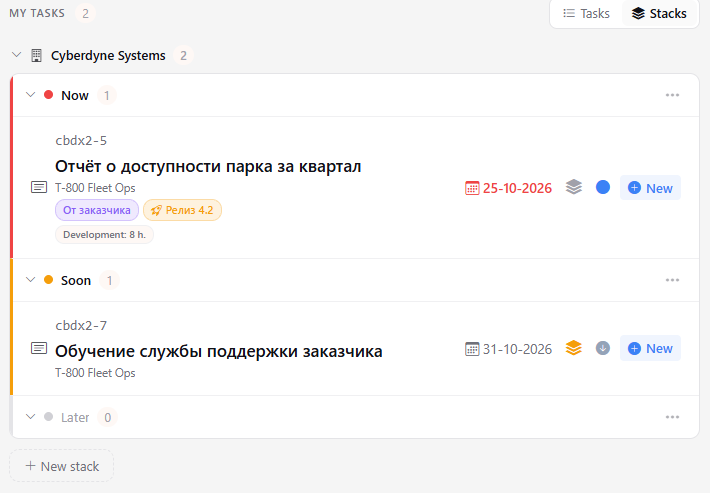
On first open, three stacks are created: Now, Soon, Later. You can rename, recolor or delete them, and add your own. You can have at most 5 stacks.
How to put a task into a stack
Only your tasks where you are the assignee can go into a stack, and only open ones. A task can lie in one stack only. Until you move a task anywhere, it lies in the first stack (Now).
- The stack button in a task row (in lists and on the dashboard) opens the stack menu. Pick a stack and the task moves there. Remove from stack returns the task to the first stack (Now).
- The button in the task header (next to Notes and Copy) does the same from the task card.
- Drag and drop. In Stacks mode, grab a task row with the mouse and drag it to another stack of its organization or to another place in the same stack; the order is saved. Empty stacks show a drop area while you drag.
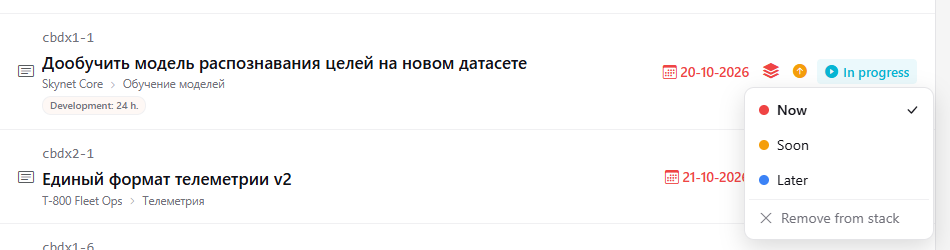
If you do not see the button, the task is closed or you are not its assignee.
How to change a stack
Click ⋯ (Edit stack) in the stack header: you can set the name, pick a color or delete the stack. Deleting a stack does not delete its tasks, they just leave the stack.
To create one more stack, click New stack to the right of the last one (the button disappears when you already have 5).
What happens to closed tasks
When you close a task or someone else becomes its assignee, it leaves your stack on its own. There is no need to clean stacks manually.
Stacks are personal: other people cannot see them or know which stack your task is in.
If you work in several organizations, Stacks mode shows a block with the same stacks for each organization. Tasks can be moved only within one organization.