The status shows what stage a task is at. The priority shows how important it is. The type shows what kind of work it is. All three can be changed right on the task card or on the kanban card.
Statuses
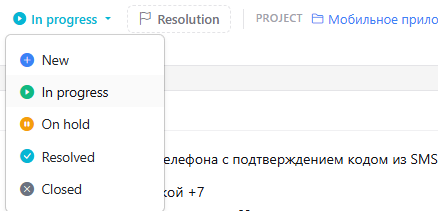
- New — the task has been created, but work hasn't started yet.
- In progress — the assignee is working on the task.
- On hold — work is paused: waiting for an answer, a decision or another task.
- Resolved — the work is done and the result can be checked.
- Closed — the task is finished for good.
How to change the status
- Open the task.
- Click the current status in the Properties block.
- Choose the new status.
On the kanban board it works the same way — use the status button at the bottom of the card.
Good to know
- Task watchers are notified when the status changes.
- Changing the status clears the task's resolution — each status has its own resolutions, see Resolutions.
- A task can't be moved to Resolved while the tasks blocking it are unresolved (see Link tasks in Task card).
- Resolved and closed tasks disappear from My tasks on the dashboard. Closed tasks are hidden on the kanban board — turn on Show closed tasks to see them.
Priorities
- Critical — on fire, drop everything else.
- High — do it first.
- Medium — a regular task, the default priority.
- Low — do it when there's time.
On the dashboard and the kanban board you can sort tasks by priority — critical ones go to the top.
Types
- Task — regular work.
- Bug — an error to fix. Good practice is to describe the steps, the expected and the actual result.
- Idea — a proposal that still needs to be discussed and estimated.
- Improvement — a refinement of something that already works.
On the kanban board you can group tasks by type — this shows all bugs separately from the rest of the work.
Auto-closing resolved tasks
A superadministrator can close, in one go, resolved tasks that have had no reaction for a long time: Admin → System → Auto-close.
- In Days without reaction in the "Solved" status enter the period and press Save.
- Tick the projects and press Show tasks — you get the list of tasks in the "Solved" status with no comments, changes or reactions for longer than the set period.
- Untick the tasks that should not be closed and press Auto-close.
Each closed task gets a comment from "HubNext System" saying that the review period of the "Solved" status has expired.