Todos are your personal plan for the day: short items like "call", "check", "send" that don't deserve a full task. You can give todos to yourself and to colleagues, organize them into lists and get email reminders.
Where to find it
Sidebar → Todos. The number next to it shows how many of your unfinished todos are due today or already overdue. The same kind of number is shown on each tab of the page (My, Tasks, Companies, Goals, Documents), so you can see at once where those todos are.
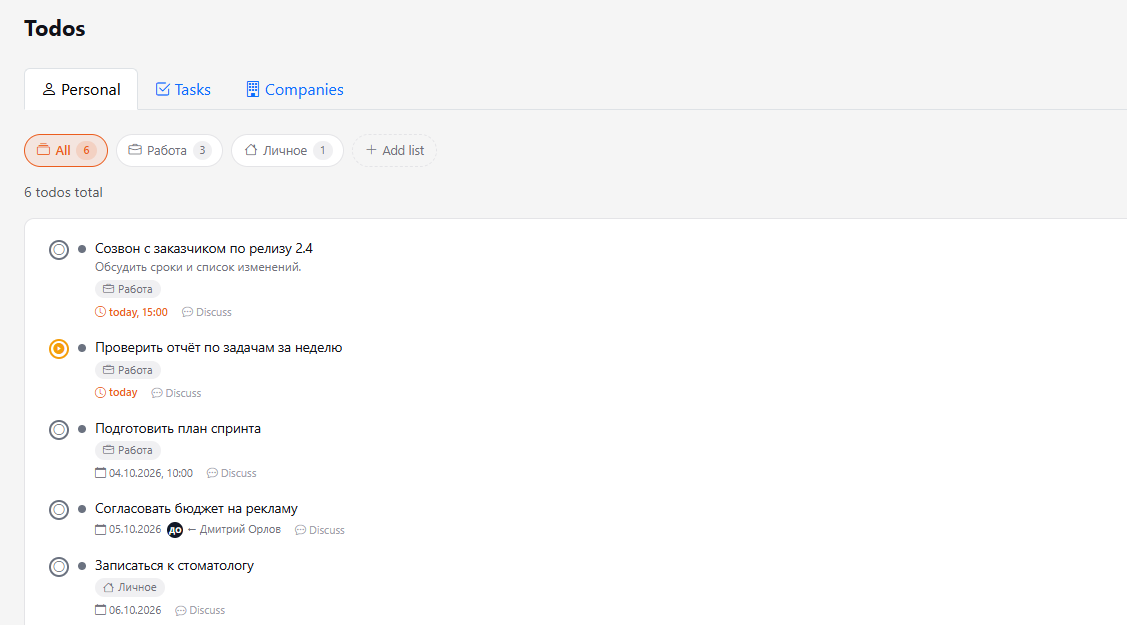
Tabs
- Personal — personal todos not linked to anything.
- Tasks — task reminders (the Remind button on a task card) and task checklist items assigned to you.
- Companies — todos linked to CRM clients.
- Goals — goal milestones assigned to you.
- Documents — reminders created with the Remind me button in a document card.
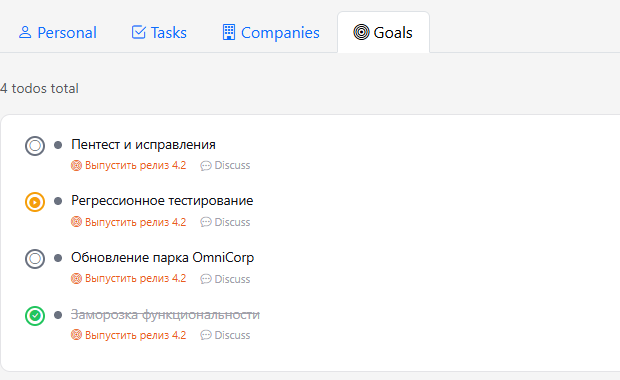
How to add a todo
- Click Add todo.
- Enter a title and, if needed, a description.
- Set the Due date and Time.
- Choose an Email reminder — for example, 30 minutes before. The reminder works only if a due date is set.
- Optionally choose a List, an Assignee and a Color.
- Click Create todo.
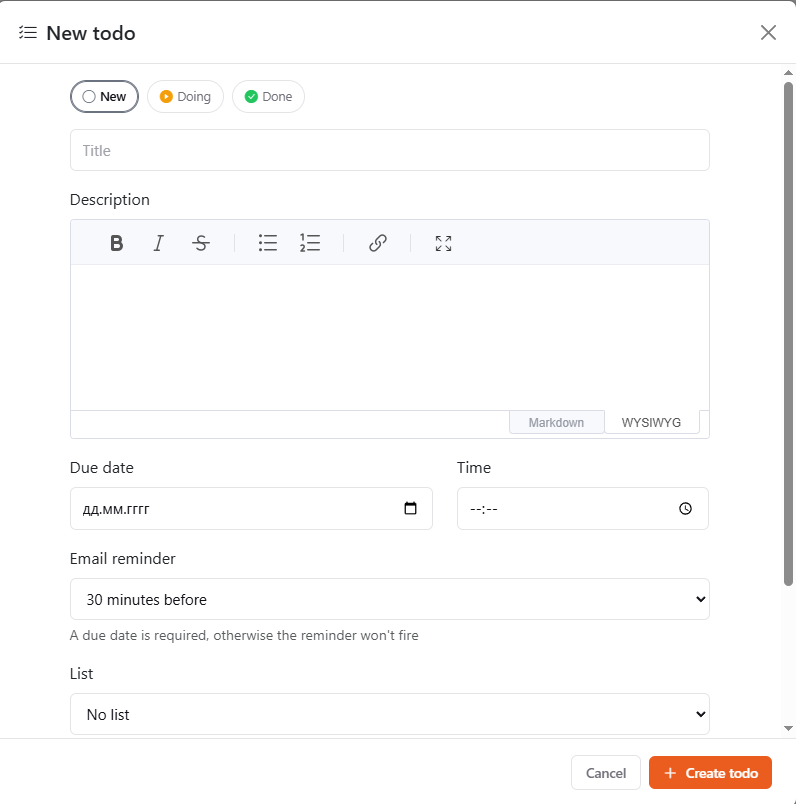
The default reminder time is set in your profile, so you don't have to pick it every time.
Working with todos
- The circle on the left cycles the status: New → Doing → Done.
- Click a todo to open and edit it.
- Discuss — a short conversation about the todo with whoever set it or is doing it.
- Todos due today and overdue ones are highlighted.
Todos for colleagues
In the Assignee field you can choose a colleague (the list has search by name and e-mail, in Cyrillic or Latin; the default is "Me") — the todo appears in their list. Next to the due date you see who set the todo (for example, "← Дмитрий Орлов"). A todo is visible only to its author and assignee.
Lists
Lists help separate todos — for example, "Work" and "Personal".
- Click Add list, enter a name and choose an icon.
- Put todos into a list with the List field in the todo window.
- The list buttons above the todos show only that list. All shows everything.
If you delete a list, its todos stay — just without a list.